





Your Mudah Cloud account holds access to all your services and invoices. This guide explains how to secure it: change your password, turn on two-factor authentication (2FA), keep your recovery codes, and sign in with your Google account.
What you need
- Your Mudah Cloud password, or the Google account linked to it.
- A phone with an authenticator app that supports TOTP, such as Google Authenticator, Microsoft Authenticator, or a password manager with 2FA codes.
- A safe place for your recovery codes, such as a password manager.
Step 1: open the security settings
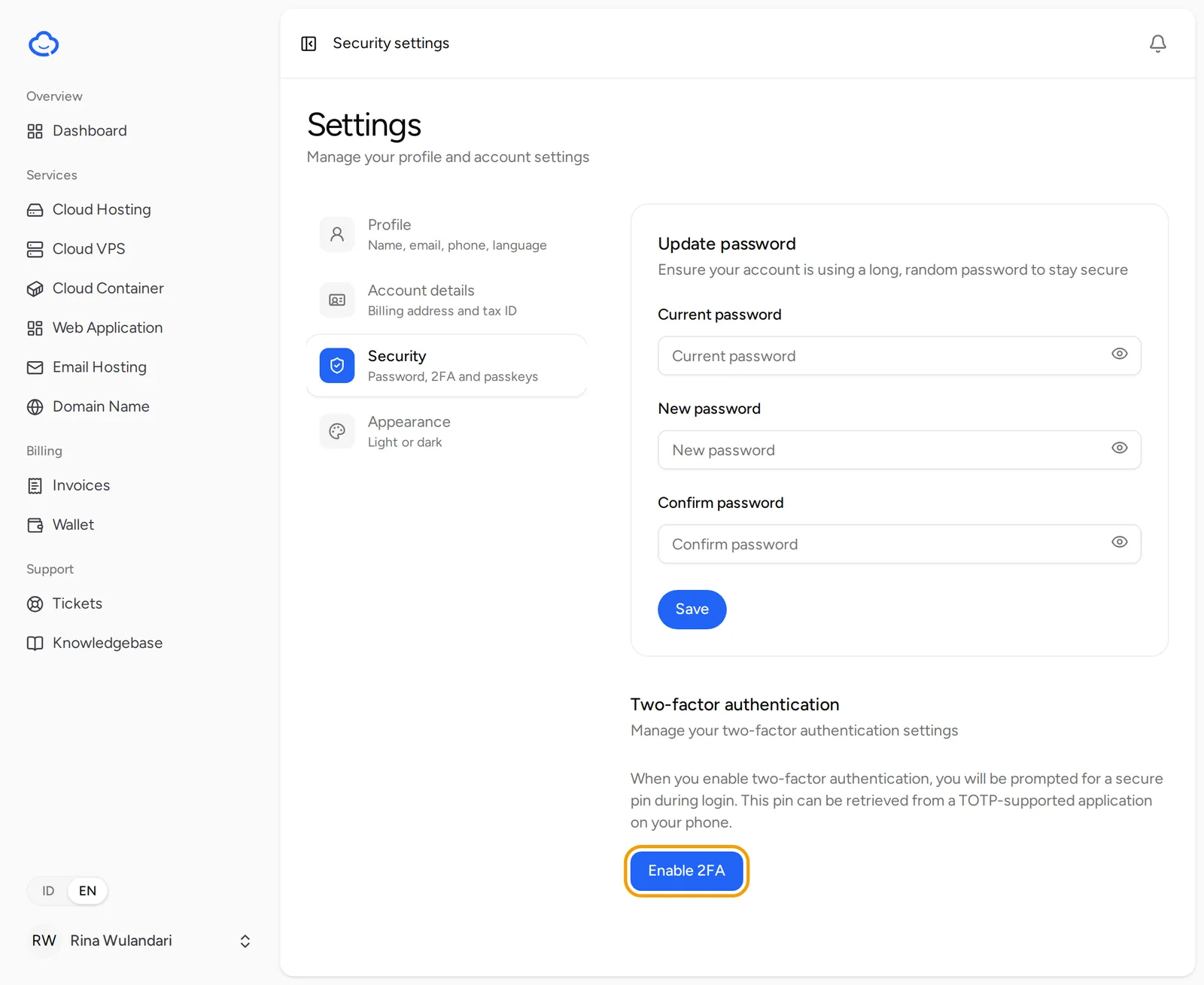
- In the client area, click your name at the bottom of the left menu, then choose Settings.
- Click Security (Password, 2FA and passkeys).
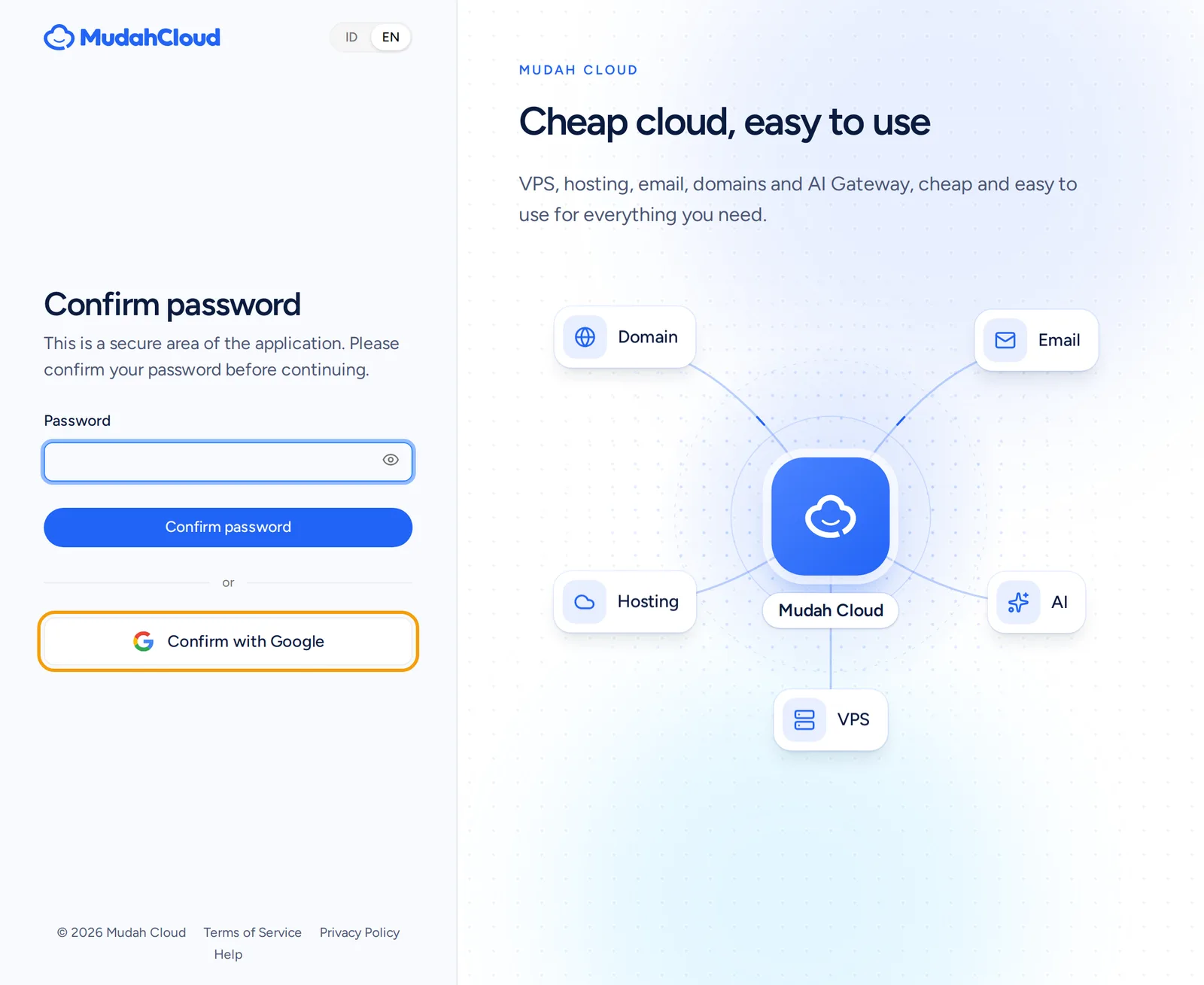
- The Confirm password page appears because this is a secure area. Type your password and click Confirm password. If your account is linked to Google, you can also click Confirm with Google.
After confirming, the Security settings page opens.
Step 2: change your password
- Under Update password, enter your Current password.
- Enter a New password and repeat it in Confirm password. Use a long, random password that you do not use on other sites.
- Click Save. The message Password updated. appears.
If your account was made with Google, this section is called Set a password and has no Current password field. Enter the New password and Confirm password, then click Save. After that you can sign in with Google or with your email and password.
Step 3: turn on two-factor authentication
- Under Two-factor authentication, click Enable 2FA.
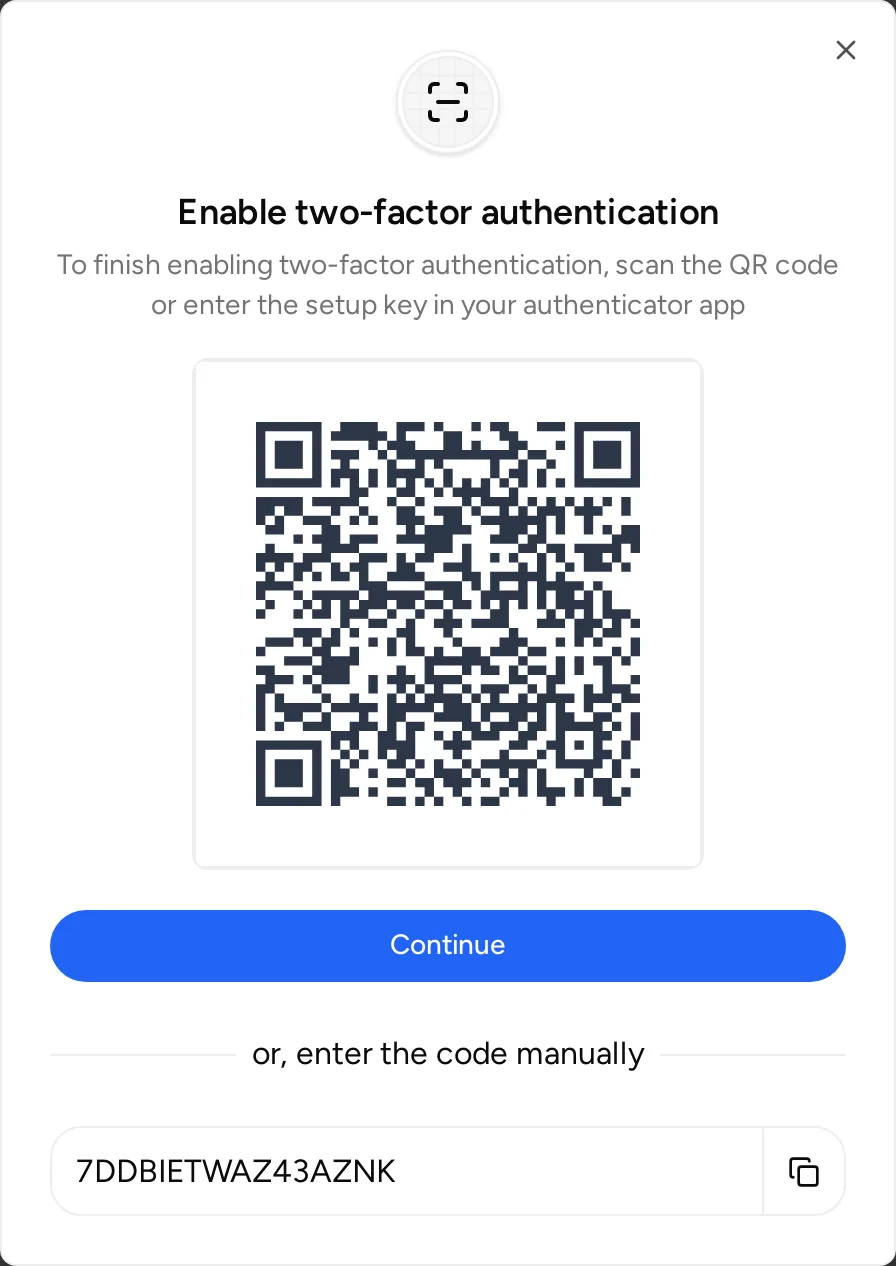
- The Enable two-factor authentication window opens with a QR code.
- Open the authenticator app on your phone, add a new account and scan the QR code. If you cannot scan it, copy the code below "or, enter the code manually" and enter it as the setup key in the app.
- Click Continue.
- Under Verify authentication code, enter the 6-digit code shown in the app, then click Confirm.
2FA is only on once the code is confirmed. If the window closes before that, click the button in that section again (Continue setup or Enable 2FA). Once it is on, the section shows a Disable 2FA button and a 2FA recovery codes card.
Step 4: keep your recovery codes
Recovery codes let you sign in if you lose your phone or the authenticator app is removed.
- On the 2FA recovery codes card, click View recovery codes.
- Copy all the codes and keep them somewhere safe, away from your phone.
- Click Hide recovery codes when you are done.
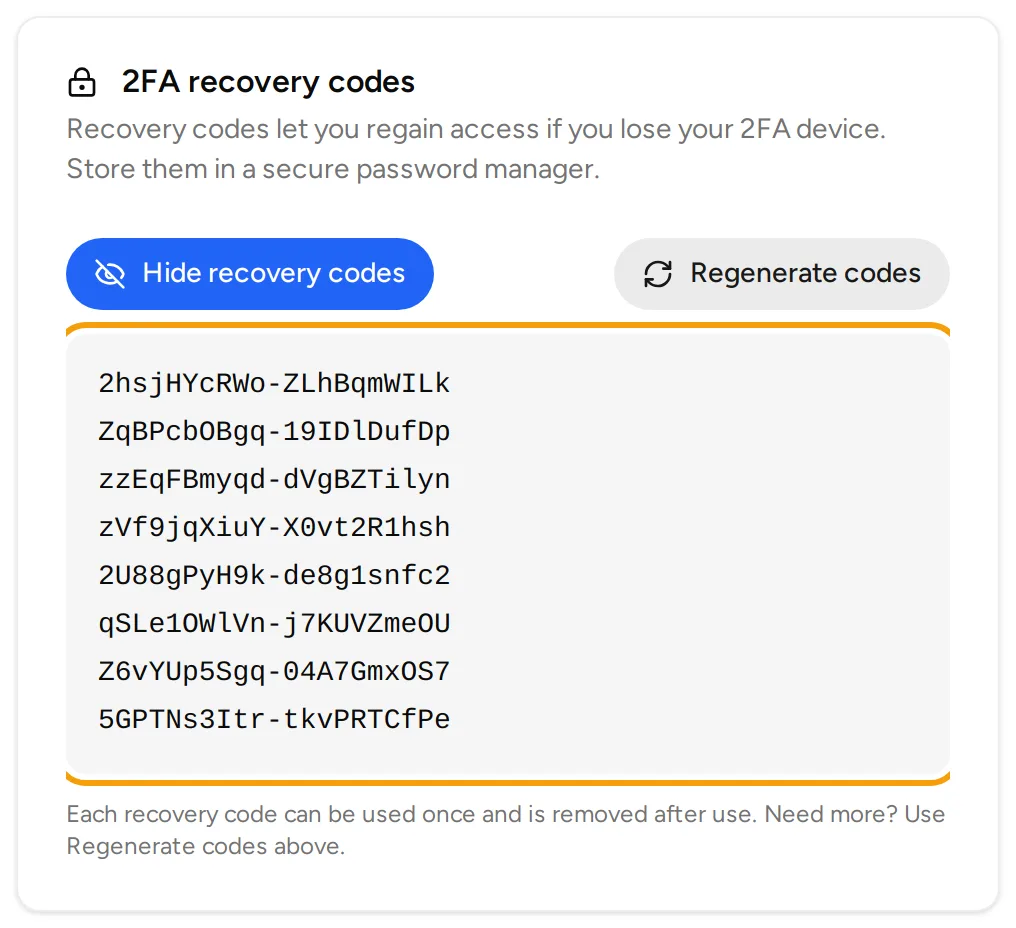
Each code can be used once and is then removed. To get a new list, show the codes and click Regenerate codes. The old list stops working, so keep the new one.
Step 5: sign in with 2FA
Once 2FA is on, you are asked for an extra code every time you sign in.
- Sign in as usual with your email and password, or with Google.
- On the Authentication code page, enter the 6-digit code from your authenticator app, then click Continue.
- If you do not have your phone, click login using a recovery code, enter one of your codes under Enter recovery code, then click Continue.
Step 6: sign in with Google
When it is available, the login page shows a Continue with Google button.
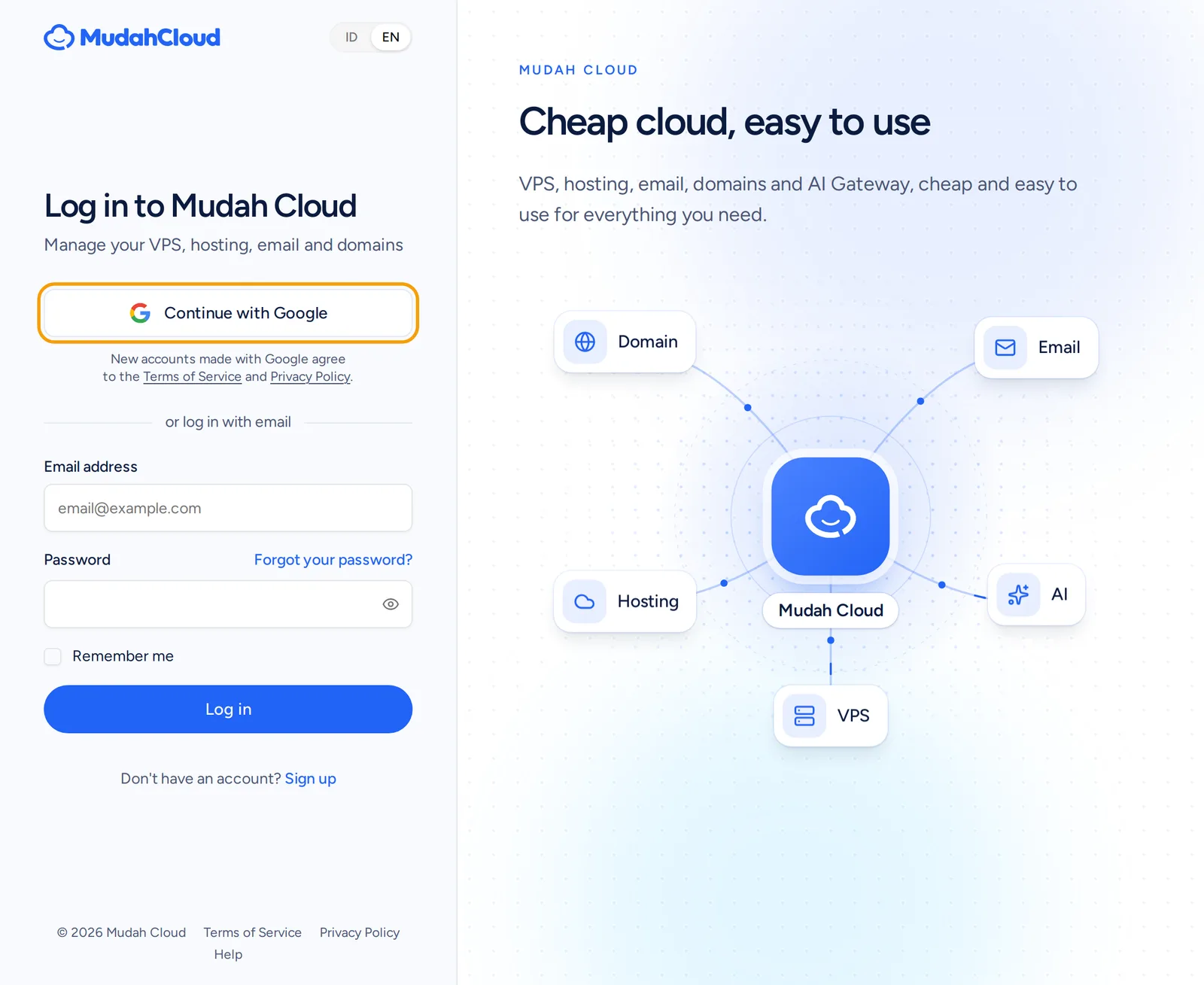
- If your Google account's email is the same as your Mudah Cloud email, your account is linked to Google the first time you sign in with it.
- If the email is not registered yet, a new account is created. That account has no password yet. Set one with Step 2 if you also want to sign in with your email.
- If 2FA is on, you are still asked for the authentication code after signing in with Google.
An account linked to Google can use Confirm with Google whenever the Confirm password page appears.
Troubleshooting
- The authentication code is always rejected: make sure your phone's clock is set automatically, then try the next code.
- Continue with Google does not show: Google sign-in is not available right now. Sign in with your email and password.
- You see That is not the Google account linked to this account.: choose the Google account you used to sign in before.
- You see This email address is linked to another Google account.: sign in with your email and password, or with the Google account that is already linked.
- You lost your phone and do not have your recovery codes: you cannot sign in on your own. Contact us through the contact page from your account email.
If you can still sign in, open Support and then Tickets, click New ticket, and choose the Technical support department. Never send a password or recovery code in a ticket.