






This guide explains how to pay an invoice in the client area and what happens when an invoice passes its due date. When you are done, your invoice is marked paid and the related service is set up or renewed.
Opening the invoice
- Sign in to the client area.
- In the sidebar, open Billing and then Invoices.
- Click the invoice you want to pay. If you have unpaid invoices, you can also click Pay now at the top of the list.
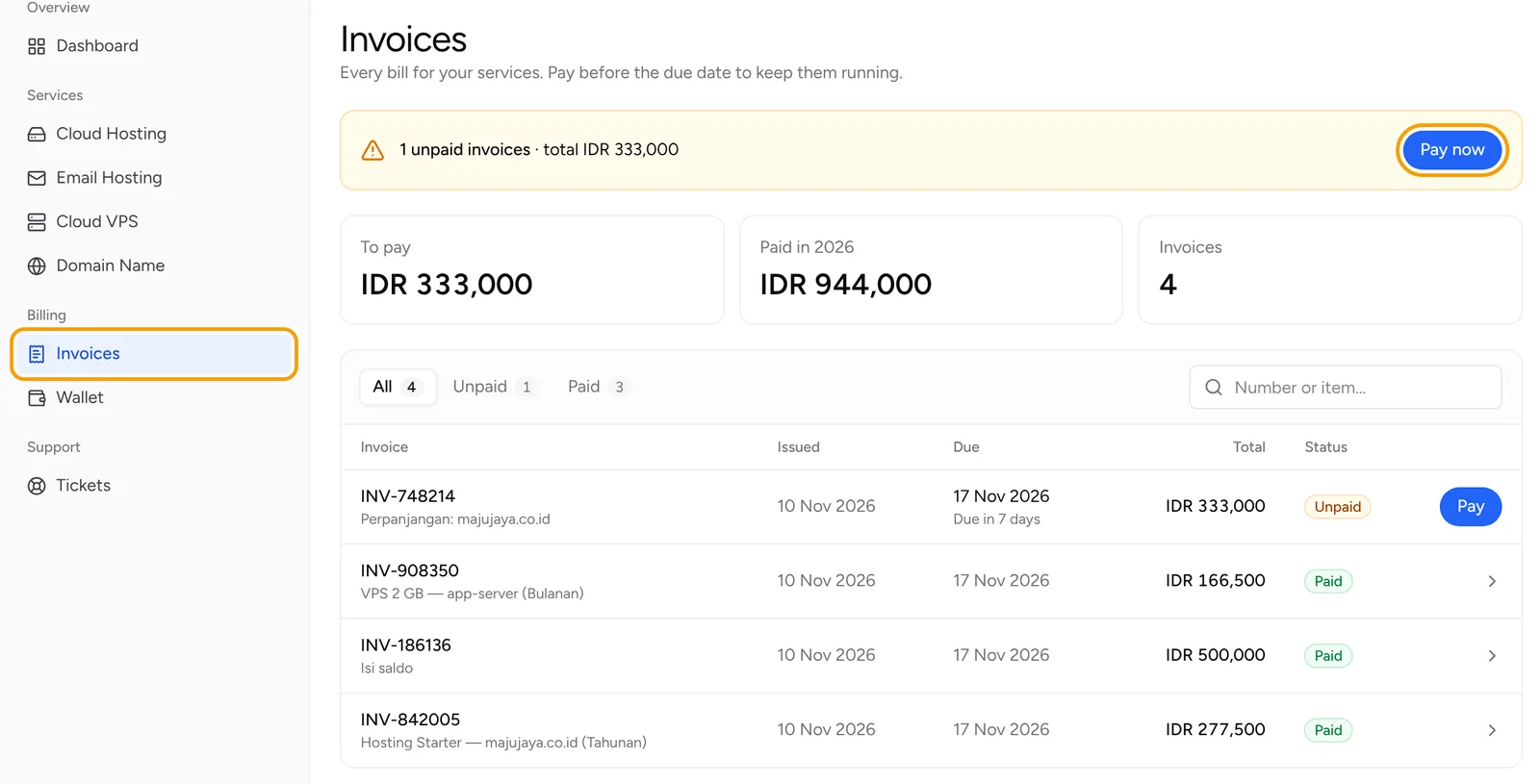
The invoice page shows the issue date, the due date, the line items and the Amount due. The PDF button downloads the invoice as a PDF.
Option 1: online payment
- Under Choose a payment method, pick the method you want. Methods are grouped, for example Virtual Account, QRIS, E-Wallet or Retail. Which methods appear depends on what is available at the time.
- The page shows the Payment code / virtual account or a QR code, along with the Amount to pay. Some methods add a payment fee, which is shown below the total.
- Pay before the time shown in "Pay before". For some methods, click Open payment page to finish paying on the provider's page.
- After paying, click I have paid, check status. Online payments are recorded automatically.
To choose another method before paying, click Change method.
Option 2: bank transfer
- Under Choose a payment method, pick Bank transfer (manual confirmation).
- The page shows the Bank, Account number, Account holder and the amount to transfer.
- Transfer exactly that amount and include the invoice number in the transfer note.
- Click I have transferred: confirm payment. This opens a new ticket in the Billing department, already filled in with the invoice number.
- Attach the transfer receipt, then click Send ticket.
Our team confirms bank transfers manually, usually within one working day.
Option 3: pay with balance
If the balance feature is on and your balance is above zero, the top of the payment options shows "Your balance".
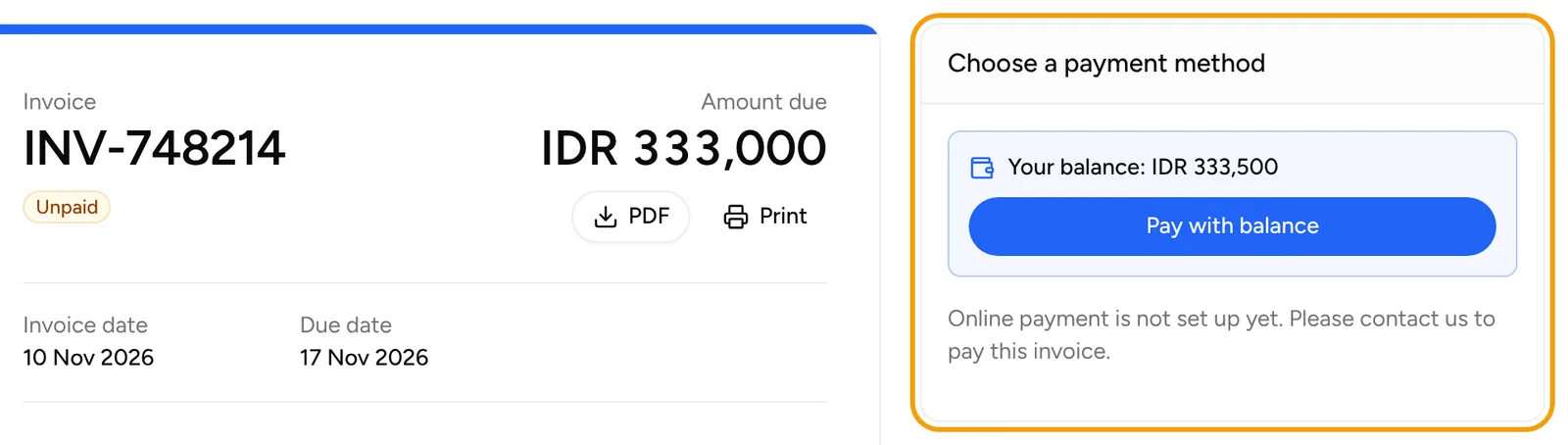
- If the balance covers the invoice, click Pay with balance. The invoice is paid right away.
- If the balance is not enough, click Use balance. The balance covers part of the invoice, then you pay the rest with another method.
To add balance, open Billing and then Wallet, enter an amount under Top up balance, and click Continue to payment. A top-up is also paid by invoice, and the balance is added as soon as that invoice is paid.
What the due date means
The due date is the deadline for paying the invoice.
- New order invoices: the service is set up once the invoice is paid. Orders left unpaid for some days after the due date are cancelled automatically.
- Renewal invoices: created some days before the service's active period ends. If still unpaid some days after the period ends, the service is suspended. Pay the open invoice to reactivate it. Hosting that stays suspended too long can be removed, and you get a warning beforehand.
If Auto-renew is on for a service, renewal invoices are paid from your balance automatically, so keep enough in it.
If something goes wrong
- You paid online but the status has not changed: wait a few minutes, then click I have paid, check status again.
- Your bank transfer is not confirmed after one working day: reply to your confirmation ticket.
- You see a message that online payment is not set up yet: contact us through a ticket.
Open Support and then Tickets, click New ticket, and choose the Billing department. Mention the invoice number.