






This guide walks you through setting up the AI Gateway from scratch. When you are done, you have AI credit, an API key, and a first successful request from a terminal or from Python code.
The AI Gateway uses the OpenAI Chat Completions format, so libraries and apps that support OpenAI work by changing the base URL and the key.
Step 1: top up AI credit
- Sign in to the client area.
- In the sidebar, open AI and then AI Overview.
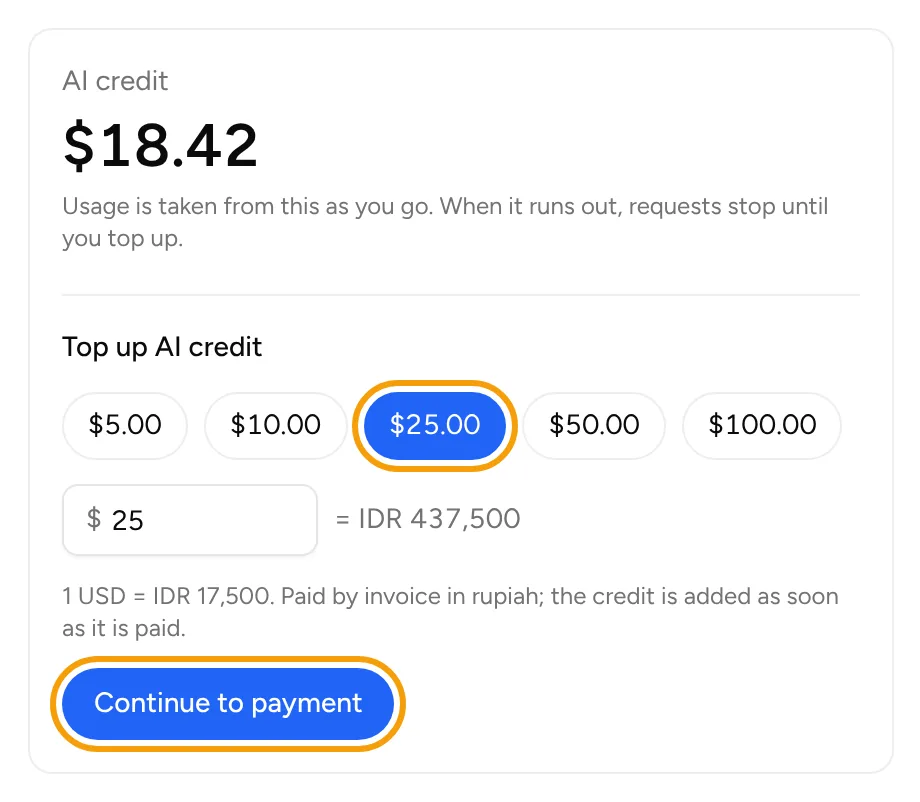
- In the AI credit section, under Top up AI credit, pick one of the amounts or type an amount in USD. The rupiah estimate is shown next to it.
- Click Continue to payment. You are taken to an invoice in rupiah.
 5. Pay that invoice. See the guide on paying an invoice if needed.
The credit is added as soon as the invoice is paid. Usage is taken from this credit at each model's price. When the credit runs out, the API answers with status 402 until you top up again.
Step 2: create an API key
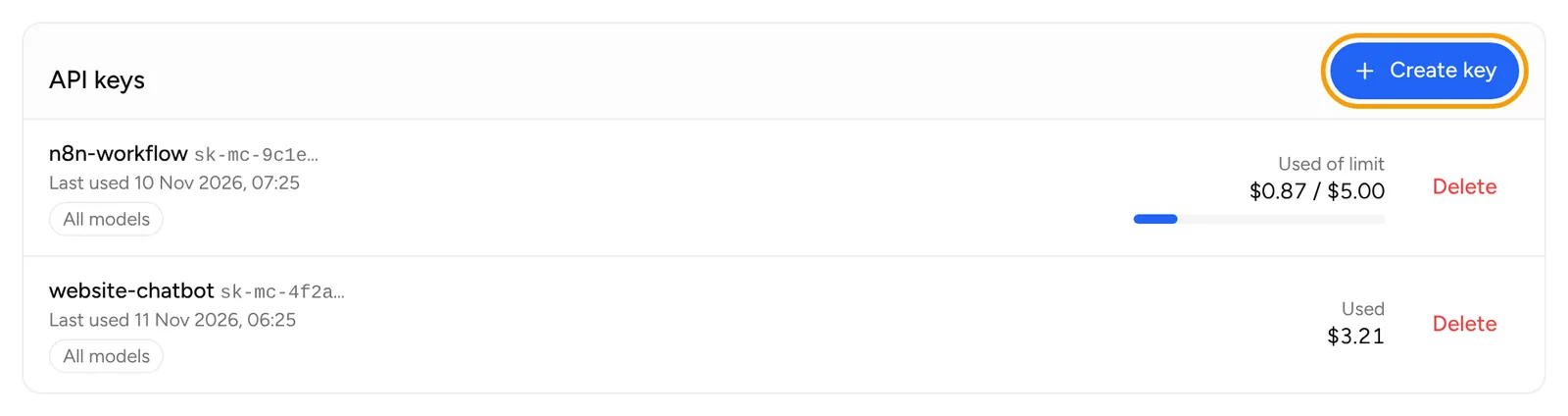
- On the AI Overview page, scroll to the API keys section and click Create key. The same button is in Connection details, in the AI API Quick Start.
 2. Fill in Key name, for example the name of the app that will use it.
3. Optional: set a Credit limit in USD. The key stops working once it has spent this much. Leave it empty for no limit beyond your AI credit.
4. Optional: under Models, choose Only selected and tick the models this key may use. Leave All models if you do not want to restrict it.
5. Click Create key.
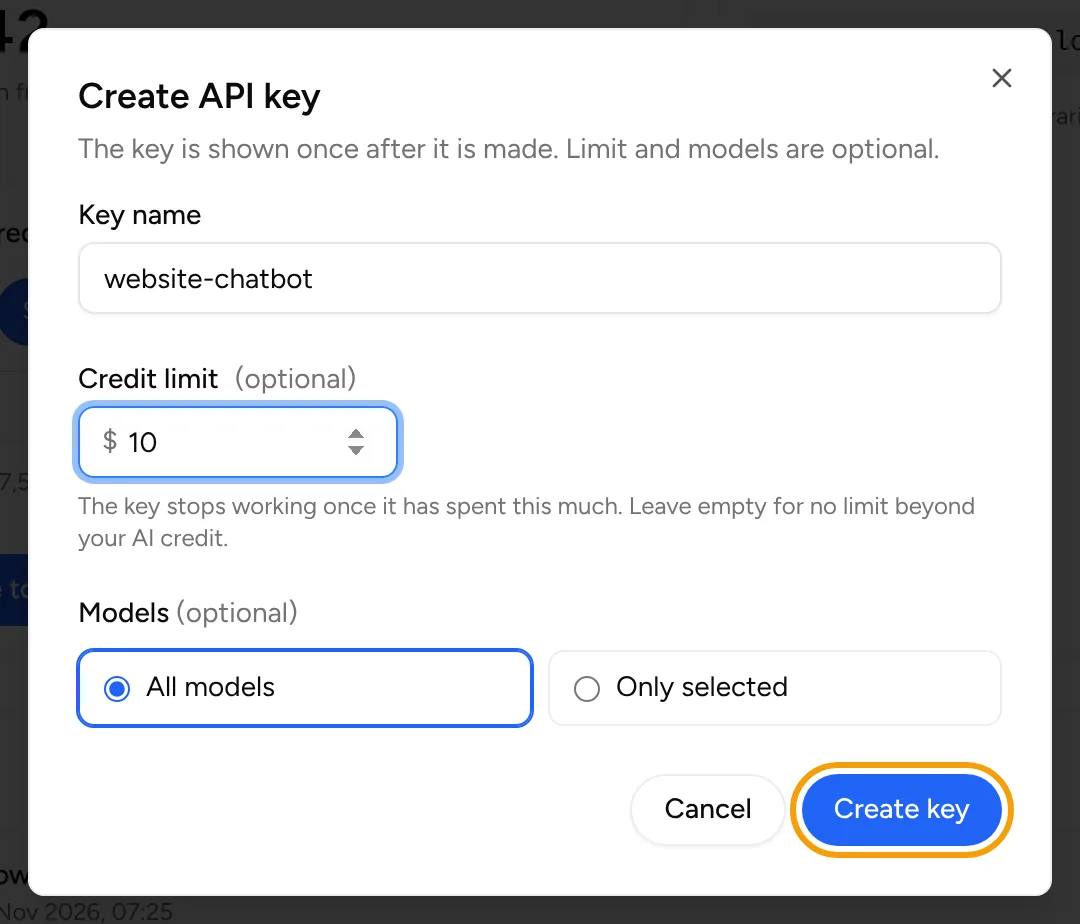
The key is shown once, right away. Copy it and store it somewhere safe before you close the message. If you lose a key, delete it and create a new one.
Make one key per app, so a leaked key can be deleted without touching the others. Never put a key in front-end code or a public repository.
Step 3: keep the key in an environment variable
In a Linux or macOS terminal:
export MUDAHCLOUD_API_KEY="paste-your-key-here"
The base URL is https://ai.mudahcloud.com/v1. It is also shown in the API address section on the AI Overview page.
Step 4: send your first request
Replace MODEL-ID with the ID of the model you want to use. Model IDs and their prices are in the Models and prices section on the AI Overview page.
The quickest way: in the AI API Quick Start, pick the model and language (cURL, Python, Node.js or PHP). The example fills in the base URL and model ID, ready to copy.
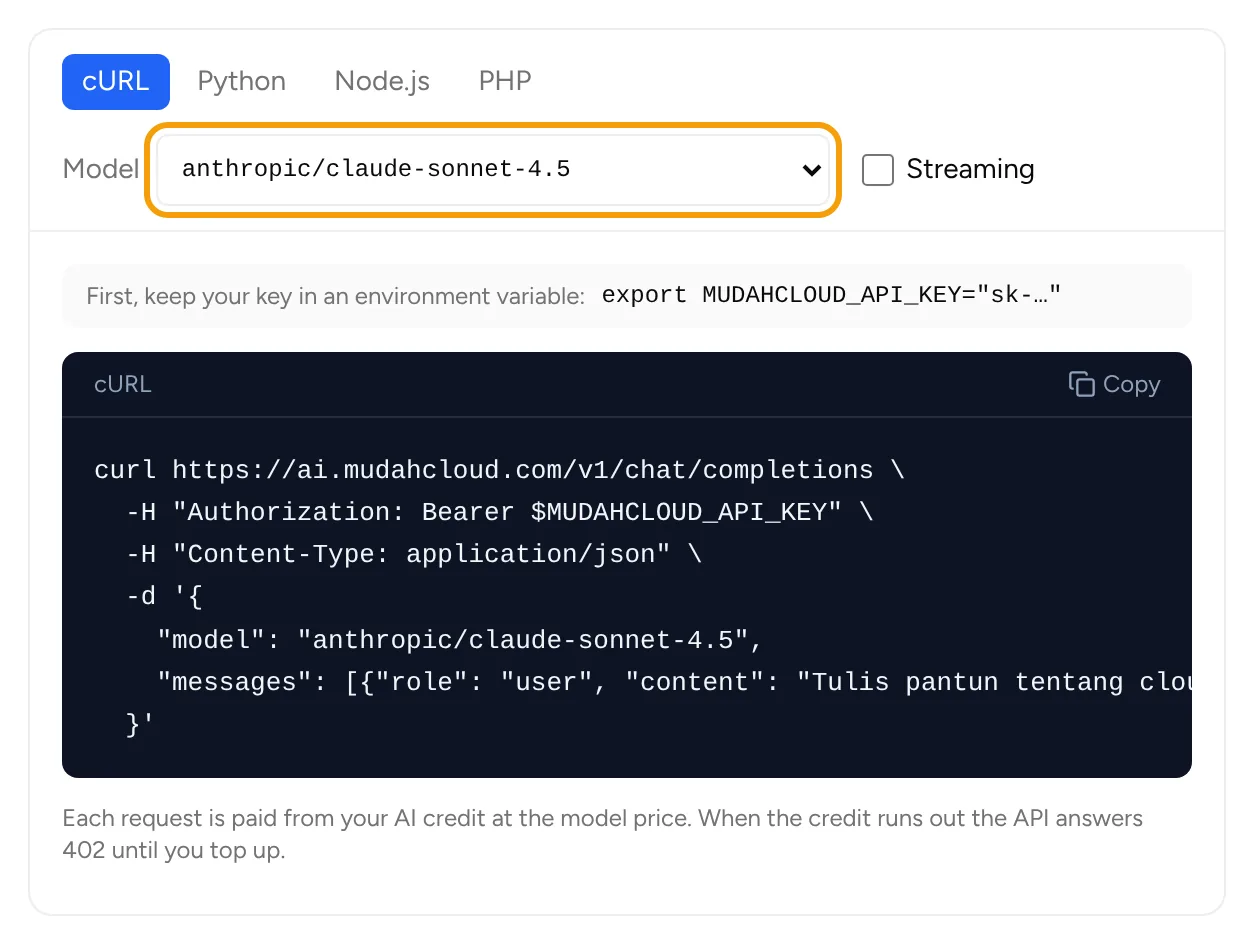
With curl:
curl https://ai.mudahcloud.com/v1/chat/completions \
  -H "Authorization: Bearer $MUDAHCLOUD_API_KEY" \
  -H "Content-Type: application/json" \
  -d '{
    "model": "MODEL-ID",
    "messages": [{"role": "user", "content": "Write a short poem about the cloud"}]
  }'
With the OpenAI Python SDK (install it first with pip install openai):
import os
from openai import OpenAI

client = OpenAI(
    base_url="https://ai.mudahcloud.com/v1",
    api_key=os.environ["MUDAHCLOUD_API_KEY"],
)

reply = client.chat.completions.create(
    model="MODEL-ID",
    messages=[{"role": "user", "content": "Write a short poem about the cloud"}],
)
print(reply.choices[0].message.content)
The Quick start section on the AI Overview page shows the same example for Node.js and PHP, including a streaming version.
Tracking usage
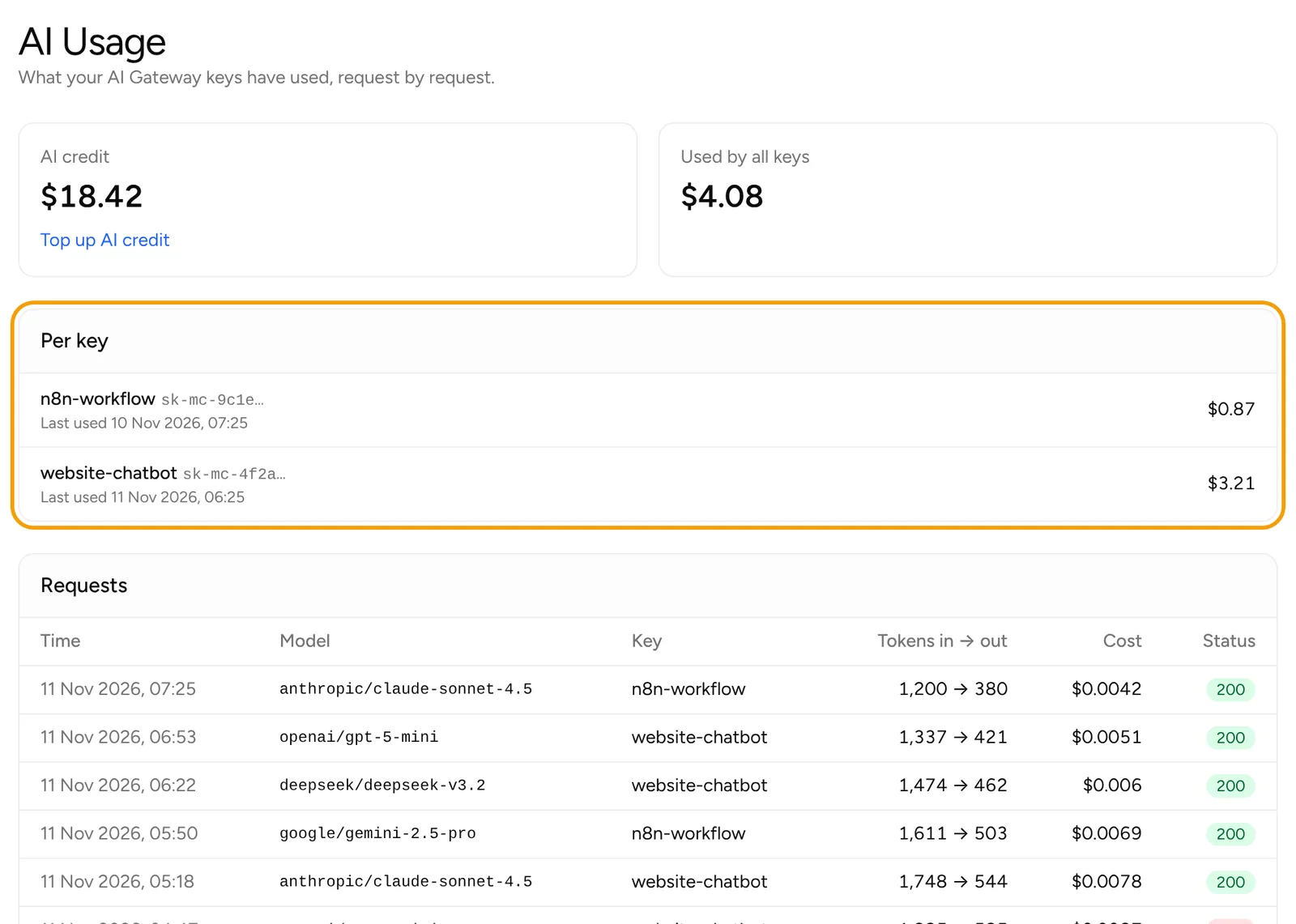
Open AI and then AI Usage to see the cost per request and per key. In the API keys list, each key also shows how much it has used and when it was last used. To try models without writing code, open AI Chat.
If something goes wrong
- A 402 response: your AI credit has run out. Top up again as in step 1.
- A key stops working: check whether the key's credit limit has been reached, or whether the requested model is in the list of models allowed for that key.
- The AI Overview page says the gateway is being set up: topping up and creating keys become available once the gateway is ready.
For other help, open Support and then Tickets, click New ticket, and choose the Technical support department. For questions about a top-up invoice, choose Billing.