





This guide explains how to link your WhatsApp number to a WAHA (WhatsApp HTTP API) Cloud Container, send your first message through the API, and forward incoming messages to n8n.
What you need
- A WAHA service with the status Active. Once the invoice is paid, WAHA is installed automatically within a few minutes, and we email you the address and login details. See the plans on the WAHA page.
- A phone with WhatsApp on the number you want to link.
- For step 5: an active n8n service. See Get started with n8n.
Before you start: the risk to your number
WAHA is not the official WhatsApp API. It is an independent open-source project that works like WhatsApp Web. WhatsApp can restrict numbers that break its rules. So:
- Use a number you can afford to lose if it is restricted, not a main number you cannot do without.
- Only send messages people expect. Do not send bulk messages or promotions to people who did not ask for them.
Step 1: find the WAHA address and API key
- Sign in to the client area.
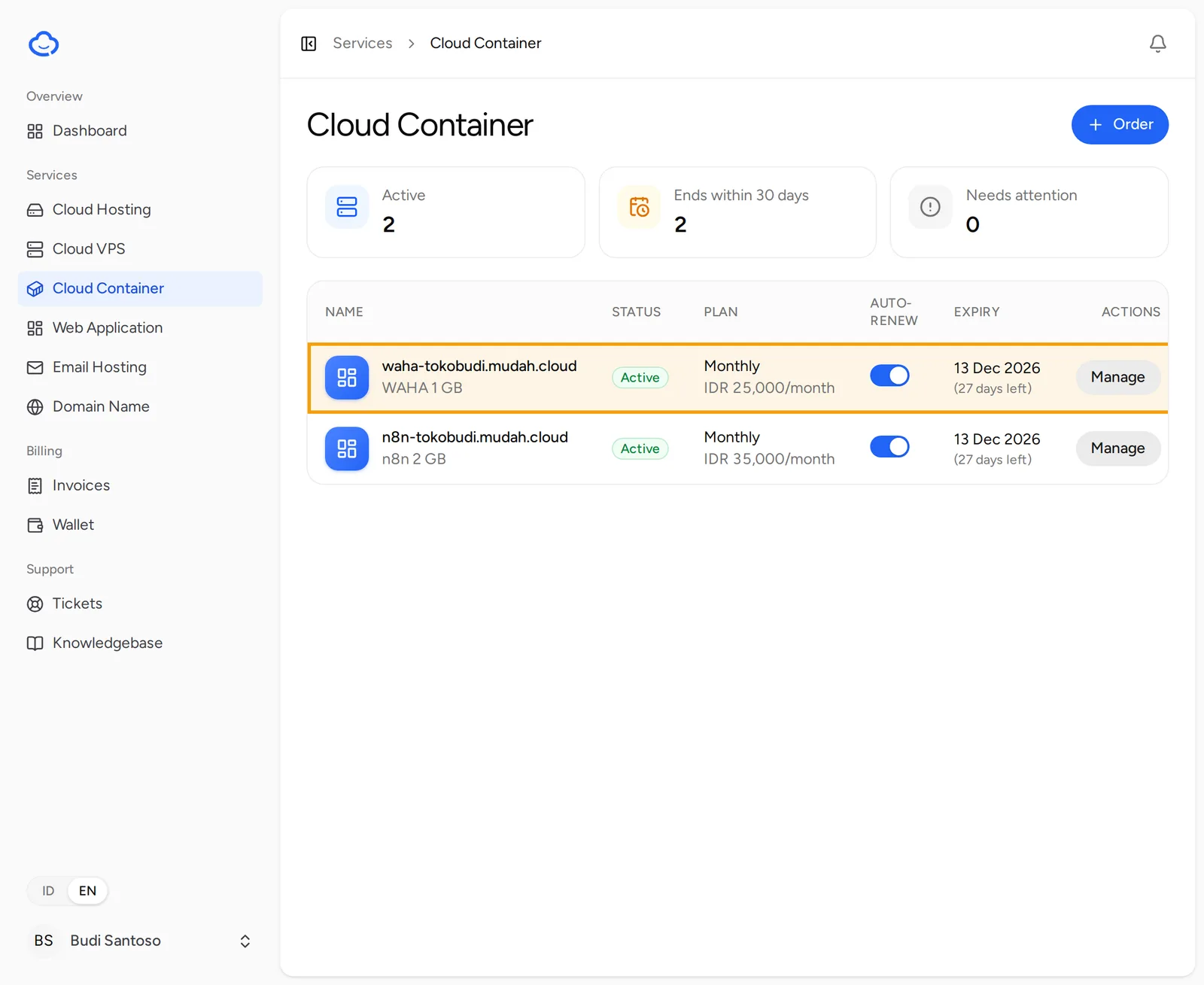
- In the sidebar, open Services and then Cloud Container.
- Click Manage next to your WAHA service, then open the Access tab.
- In the Access details section, Username and Password are the WAHA dashboard login. Click the eye icon to show the password.
- Notes holds the WAHA address, the dashboard address and the API key. All three are in the activation email too.
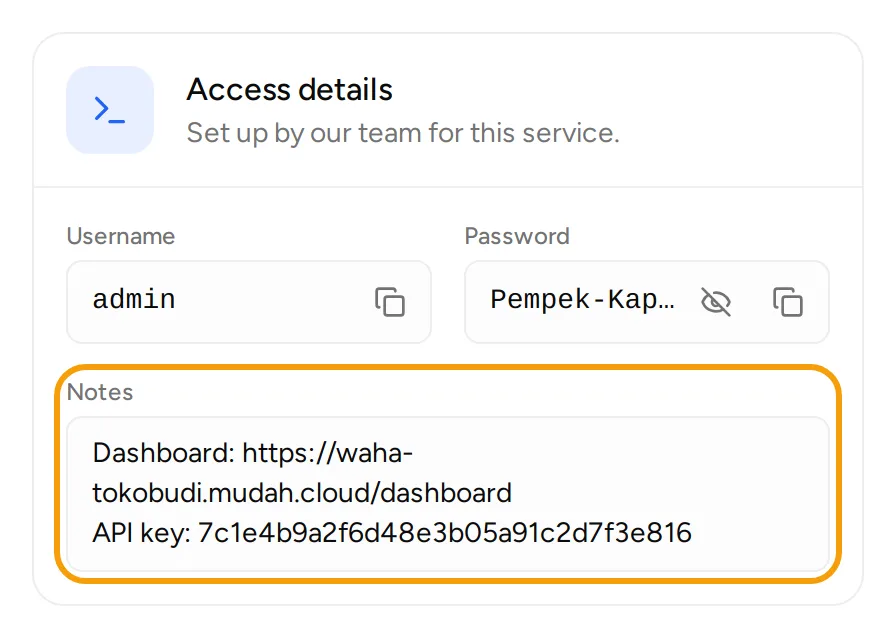
Treat the API key like a password. Anyone who has it can send messages from your number.
Step 2: open the WAHA dashboard
- Open the dashboard address from Notes, for example
https://waha-tokobudi.mudah.cloud/dashboard. - Sign in with the Username and Password from the client area.
- If the dashboard asks for an API key to connect to the server, paste the API key from Notes.
Step 3: start a session and scan the QR code
- In the dashboard, open the list of sessions. There is usually a session called
defaultalready. If not, create a new session nameddefault. - Click the button to start the session. Wait until its status asks for a QR scan.
- Click the icon that shows the QR code.
- On your phone, open WhatsApp, go to Linked devices and choose Link a device.
- Point the phone's camera at the QR code on the screen.
- Wait until the session status changes to
WORKING. Your number is now connected.
The QR code changes every few seconds. If the scan fails, show the code again and scan once more.
Step 4: send a test message through the API
Try sending a message to your own number or to a colleague who knows it is coming. Replace the address, API key and number with your own. Write the number with its country code and no +, followed by @c.us.
curl -X POST https://waha-tokobudi.mudah.cloud/api/sendText \
  -H "X-Api-Key: YOUR_API_KEY" \
  -H "Content-Type: application/json" \
  -d '{"session": "default", "chatId": "6281234567890@c.us", "text": "Hello from Toko Budi"}'
If it works, the message arrives in WhatsApp and the API replies with the details of the sent message. If the API replies 401, the API key is wrong or missing.
Step 5: forward incoming messages to n8n
WAHA can call a webhook address every time a message comes in.
- In n8n, create a new workflow and add a Webhook trigger.
- Choose the
POSTHTTP method and enter a path, for examplewhatsapp-in. - Copy the production URL from the node, for example
https://n8n-tokobudi.mudah.cloud/webhook/whatsapp-in. - Save the workflow and activate it. The production URL only receives data once the workflow is active.
- Back in the WAHA dashboard, open the settings of the
defaultsession, add a webhook with that URL and choose themessageevent. Save.
You can also do this through the API:
curl -X PUT https://waha-tokobudi.mudah.cloud/api/sessions/default \
  -H "X-Api-Key: YOUR_API_KEY" \
  -H "Content-Type: application/json" \
  -d '{"config": {"webhooks": [{"url": "https://n8n-tokobudi.mudah.cloud/webhook/whatsapp-in", "events": ["message"]}]}}'
- Send a message to the linked number from another number. In n8n, open the workflow's executions. The message data is in
body.payload: the sender infromand the text inbody.
Want to reply automatically? Add an HTTP Request node that calls /api/sendText as in step 4, with the chatId taken from from. Also add an If node that skips messages where fromMe is true, so your own replies do not trigger another reply.
If something goes wrong
- The QR code does not appear or the session stops: restart the session from the dashboard and scan again.
- The session asks for a scan again: the number was unlinked under Linked devices, for example because it was removed on the phone. Scan the QR code again.
- The API replies
401: check theX-Api-Keyheader and copy the API key again from Notes. - n8n receives nothing: make sure the workflow is active and the webhook in WAHA uses the production URL, not the test URL.
For other help, open Support and then Tickets, click New ticket, choose Technical support and pick your WAHA service.