






This guide covers what happens after you order an n8n Cloud Container, up to your first workflow running on its own. Your n8n is the open-source n8n, installed automatically on our servers and kept running by our team. It is not n8n Cloud. You build the workflows; we look after the server.
What you need
- A paid n8n service. See the plans on the n8n page.
- A browser on a computer. The n8n editor works best on a large screen.
Step 1: wait until n8n is ready
n8n is installed automatically once the invoice is paid. It usually takes a few minutes.
- While the invoice is unpaid, the service status is Awaiting payment.
- After payment, the status changes to Being set up. Our system is installing n8n on the server.
- When it is done, the status becomes Active and we email you the n8n address.
The address is the one you chose when ordering: a new domain registered with the order, or a free address under mudah.cloud, for example n8n-tokobudi.mudah.cloud.
Step 2: open the access details
- Sign in to the client area.
- In the sidebar, open Services and then Cloud Container.
- Click Manage next to your n8n service.
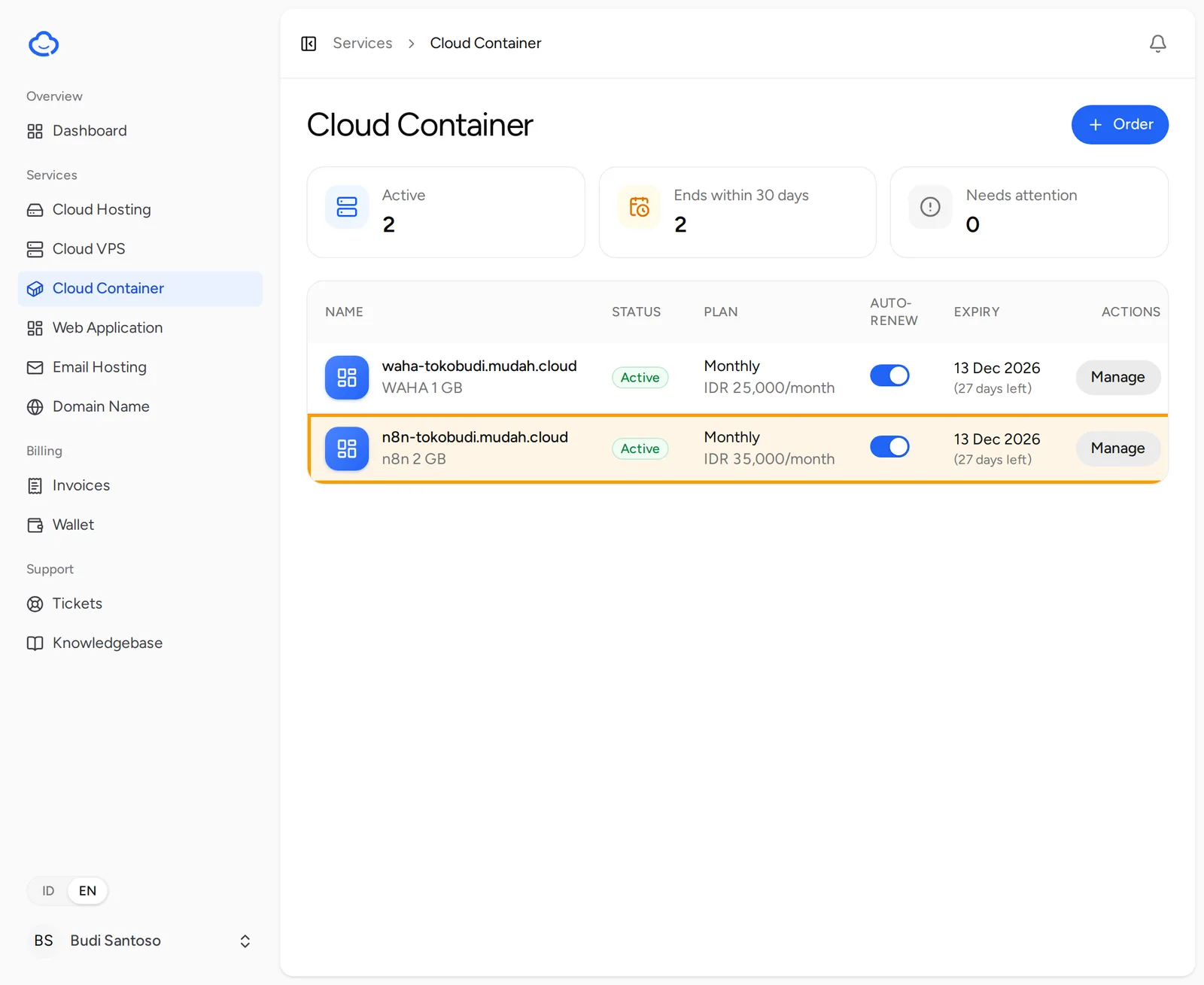
- Open the Access tab. Your n8n address is in Notes under Access details.
n8n does not use a username and password from us. You create your own sign-in in the next step.
Need these details in your inbox? Click Email me the details on the right. We send them to your account email.
Step 3: create the owner account
Do this as soon as the service is active. Whoever first opens your n8n address and fills in this form becomes its owner.
- Open the address from Notes in a new tab, for example
https://n8n-tokobudi.mudah.cloud. - A form to set up the owner account appears. Enter your own email, name and password, then save.
- You are signed in to n8n straight away. From then on, sign in with the email and password you just created.
Use a password you do not use anywhere else, and keep it somewhere safe. It is not stored in the client area.
If you see a sign-in page even though you never created an account, do not use it and open a ticket with our team right away.
Step 4: build your first workflow
This example checks your website every morning. Button names can differ slightly between n8n versions, but the flow is the same.
- On the n8n home page, create a new workflow and give it a name, for example
Morning website check. - Add the first step (the trigger) and choose Schedule Trigger. Set it to run every day at 08:00.
- Click the + to the right of that node and add an HTTP Request node.
- In the HTTP Request node, choose the
GETmethod and enter your website's URL, for examplehttps://tokobudi.com. - Run the workflow once to test it. Nodes that succeed turn green, and the result appears in the output panel.
- Save the workflow, then activate it (or publish it, depending on your n8n version) so it runs on schedule by itself.
Want to be told by email or Telegram? Add a Send Email or Telegram node after HTTP Request and fill in its credential. For email, you can use a mailbox from Email Hosting with its SMTP settings.
Tips for using n8n
- Webhook: the Webhook node gives you an address other applications can call to start a workflow. The test URL only works while you are testing in the editor. The production URL works once the workflow is active.
- WhatsApp: n8n pairs well with the WAHA Cloud Container. See Connect WAHA to WhatsApp.
- Credentials: store tokens and passwords for other services as credentials in n8n, not typed straight into a node.
If something goes wrong
- The status is still Being set up after 30 minutes: open a ticket and our team will look into it.
- The n8n address does not open yet: wait a few minutes after the status turns Active, while n8n and its HTTPS certificate start up. If you chose a new domain, it can take a few hours to work everywhere.
- You forgot your n8n password: open a ticket and our team will help you get back in.
- The workflow does not run on schedule: make sure it is activated, not only saved.
For other help, open Support and then Tickets, click New ticket, choose Technical support and pick your n8n service.