






All Cloud VPS controls are on the service page. This guide explains what each button does and what happens after you click it.
What you need
- A Cloud VPS service with the status Active. The server controls are not available while the service is still being created or is suspended.
- For your first sign-in to the server, see Get started with Cloud VPS.
Step 1: open the server controls
- In the client area sidebar, open Cloud VPS and click Manage on your VPS.
- Open the Access tab.
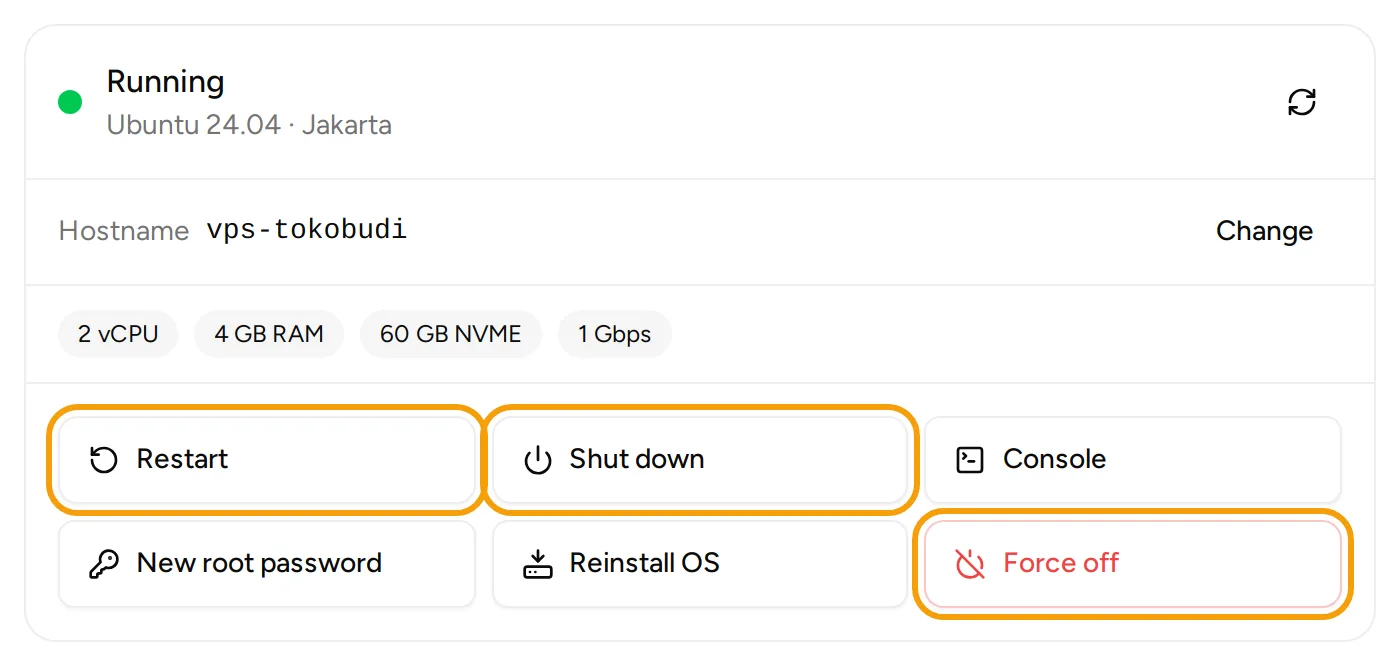
The top card shows the server status, such as Running or Stopped, with its OS, location and specs. Click the circular arrows icon (Refresh) to check the latest status.
Step 2: start, restart or shut down the server
- Restart: reboots the server. You are asked to confirm first.
- Shut down: turns the server off normally, like a shutdown command inside the OS. Applications get the chance to close cleanly.
- Force off: cuts the power at once. Unsaved data in memory is lost. Use it only when the server does not respond to Shut down.
- Start: shows in place of Restart while the server is off.
While the server is working on a command, some buttons cannot be clicked until it is done.
Step 3: open the console
Click Console to open the server's screen in a new tab. The console helps when SSH does not work, for example after a firewall or network mistake. The button is only active while the server is Running.
The console page has Ctrl+Alt+Del, Connect again and Full screen buttons. Console sessions have a time limit. When a session ends, click Connect again. If the console cannot be opened, click Open in another window to open the console on the server provider's page.
Step 4: make a new root password
Forgot the root password? Click New root password and confirm.
- The server restarts once.
- The new password shows under Access details on the Access tab and is emailed to you, usually within a minute or two.
- While this runs, the card shows that the request is being worked on.
Step 5: reinstall the OS
A reinstall puts a fresh operating system on the server. Everything on the server is erased, including files, databases and settings. Back up anything important first.
- Click Reinstall OS.
- Choose an OS from the list. It only shows the systems available for your server.
- Tick I understand all data on this server is deleted.
- Click Reinstall now.
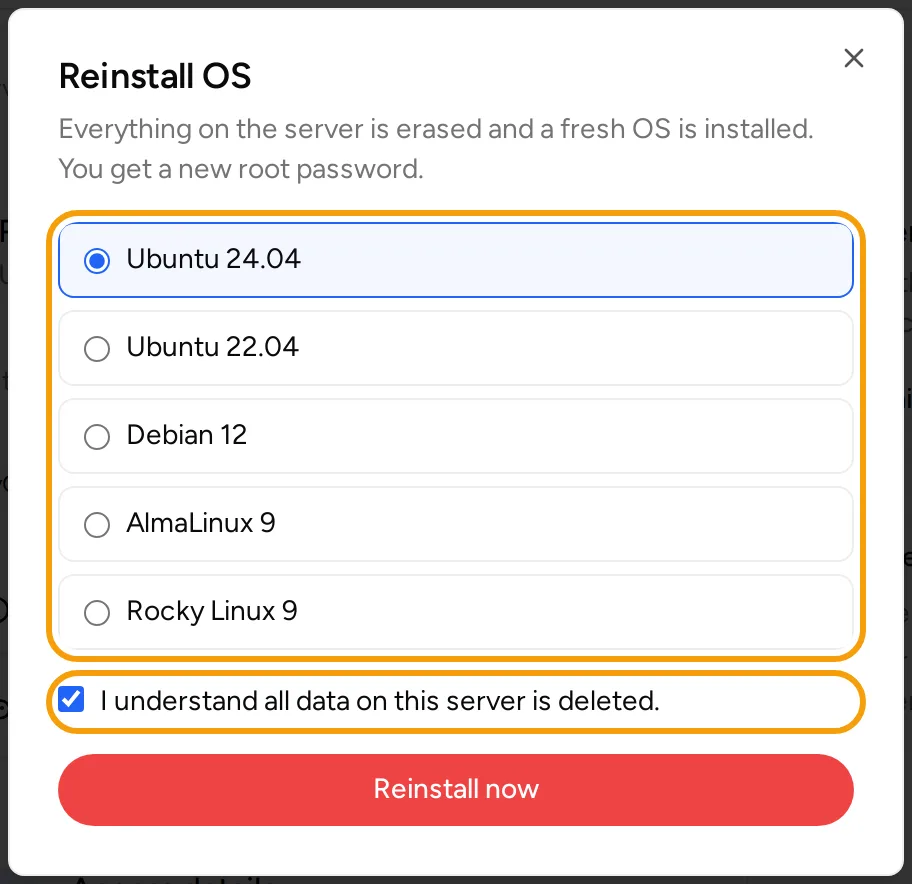
When it is done, a new root password shows on the Access tab and arrives by email. The next time you connect over SSH, your computer may warn that the server's fingerprint has changed. That is normal after a reinstall.
Step 6: change the hostname and reverse DNS
- In the Hostname row, click Change.
- Enter the new hostname, for example
vps.tokobudi.com. - Copy the command under Command for the server and run it on the server, so the OS uses the new name too. The panel does not change the hostname inside the OS.
- Click Save hostname.
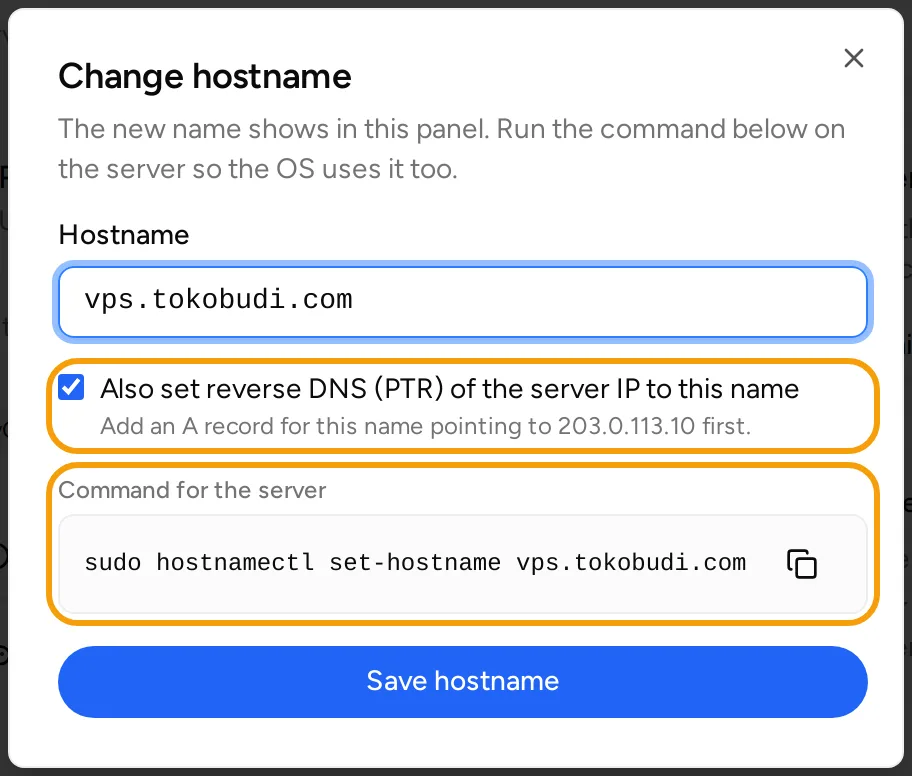
On servers that support reverse DNS, entering a full name (one with a dot) shows the option Also set reverse DNS (PTR) of the server IP to this name. Reverse DNS matters, for example, for a mail server. Before saving, add an A record for that name pointing to the server IP. If the option does not show, reverse DNS cannot be set for your server from the client area.
If reverse DNS cannot be set, the hostname is still saved and the error is shown. A reverse DNS change can take a few minutes to show, and the number of changes per day is limited.
Step 7: watch server usage
Open the Monitoring tab to see:
- Current usage: CPU, Memory, Disk and Traffic this month.
- CPU & memory and Network charts (in and out).
Pick a period at the top right: 1 h, 24 h, 7 d or 30 d. The Overview tab also shows the current figures, with a See full monitoring link.
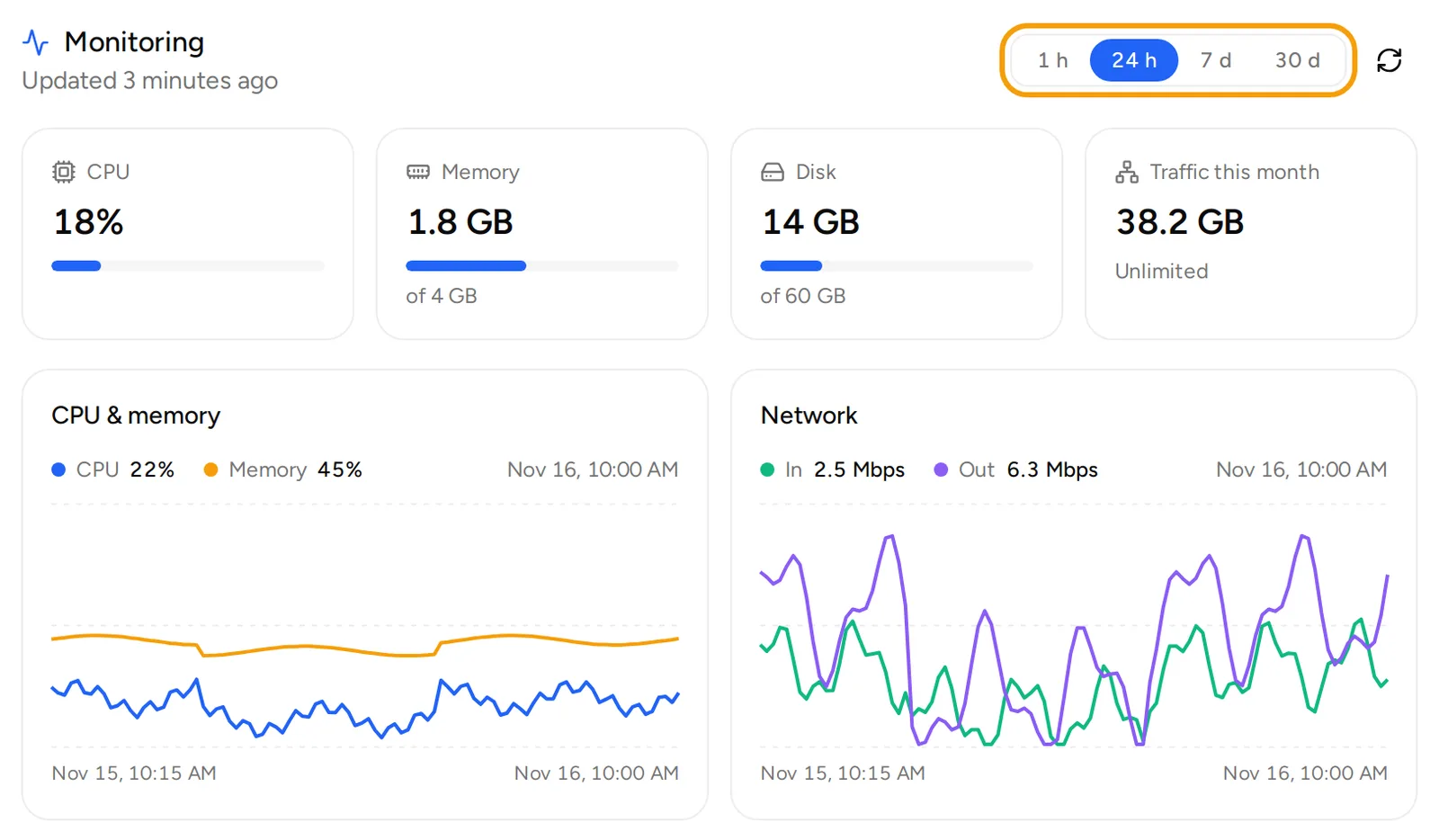
A new server shows its first figures within a few minutes.
Upgrading the package
When a bigger package is available, a Change package tab shows. Pick a package and click Continue to payment. You pay only the difference for the days left. After payment the server moves to the new package and restarts once, for about a minute. The IP address and data stay. Disks can only grow, so a VPS cannot move to a smaller package.
Troubleshooting
- A button cannot be clicked: the server is busy with another command. Wait a moment, then click Refresh.
- The new password has not shown yet: wait a minute or two and reload the page. Check your spam folder too.
- The server stopped responding after a firewall change: open the Console and fix the settings from there.
For anything else, open Support and then Tickets, click New ticket, choose Technical support, and pick your VPS.