






This guide shows how to point a domain to your Cloud Hosting at Mudah Cloud. When you are done, the website and email on your hosting will load under your domain name.
What you need
- A Cloud Hosting service with the status active.
- Access to the place where your domain is registered. If you bought the domain at Mudah Cloud, that is this client area.
Step 1: note the hosting nameservers
- Sign in to the client area.
- In the sidebar, open Services and then Cloud Hosting.
- Click your hosting service.
- Open the Access tab and find the Point your domain here section.
- Click Copy all to copy every nameserver at once.
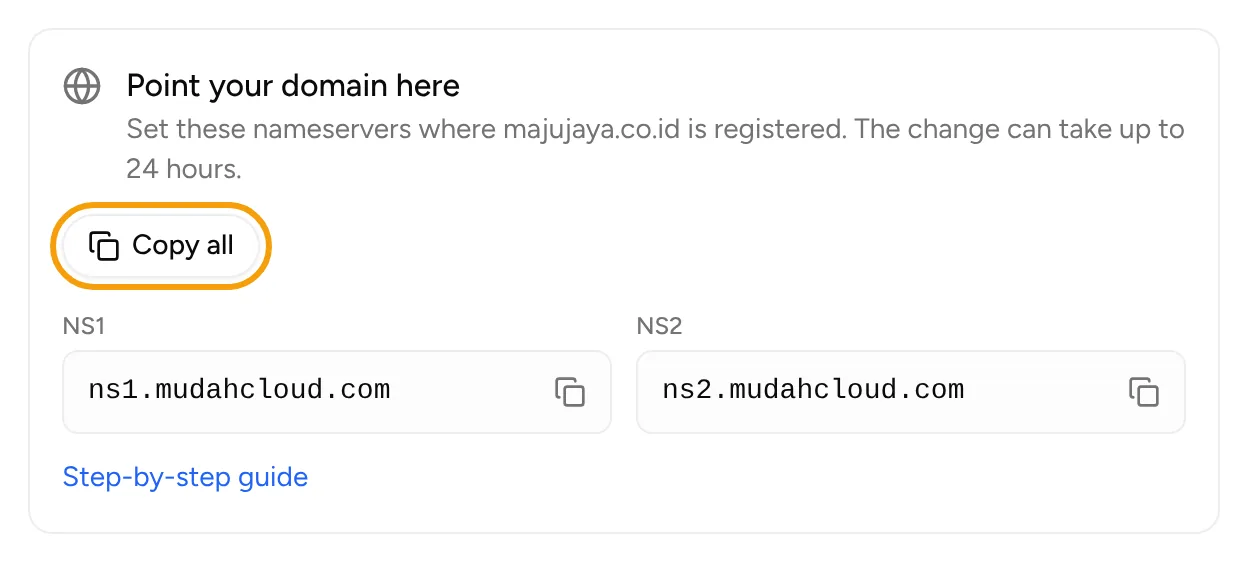
If the Nameservers row is not shown, open a ticket with the Technical support department and ask for the nameservers for your hosting.
Step 2a: domain bought at Mudah Cloud
- In the sidebar, open Services and then Domain Name.
- Click the domain you want to point.
- Open the Nameservers & Security tab and choose Use my own nameservers.
- Fill the nameserver fields with the nameservers from step 1. Fill at least two fields.
- Click Save nameservers.
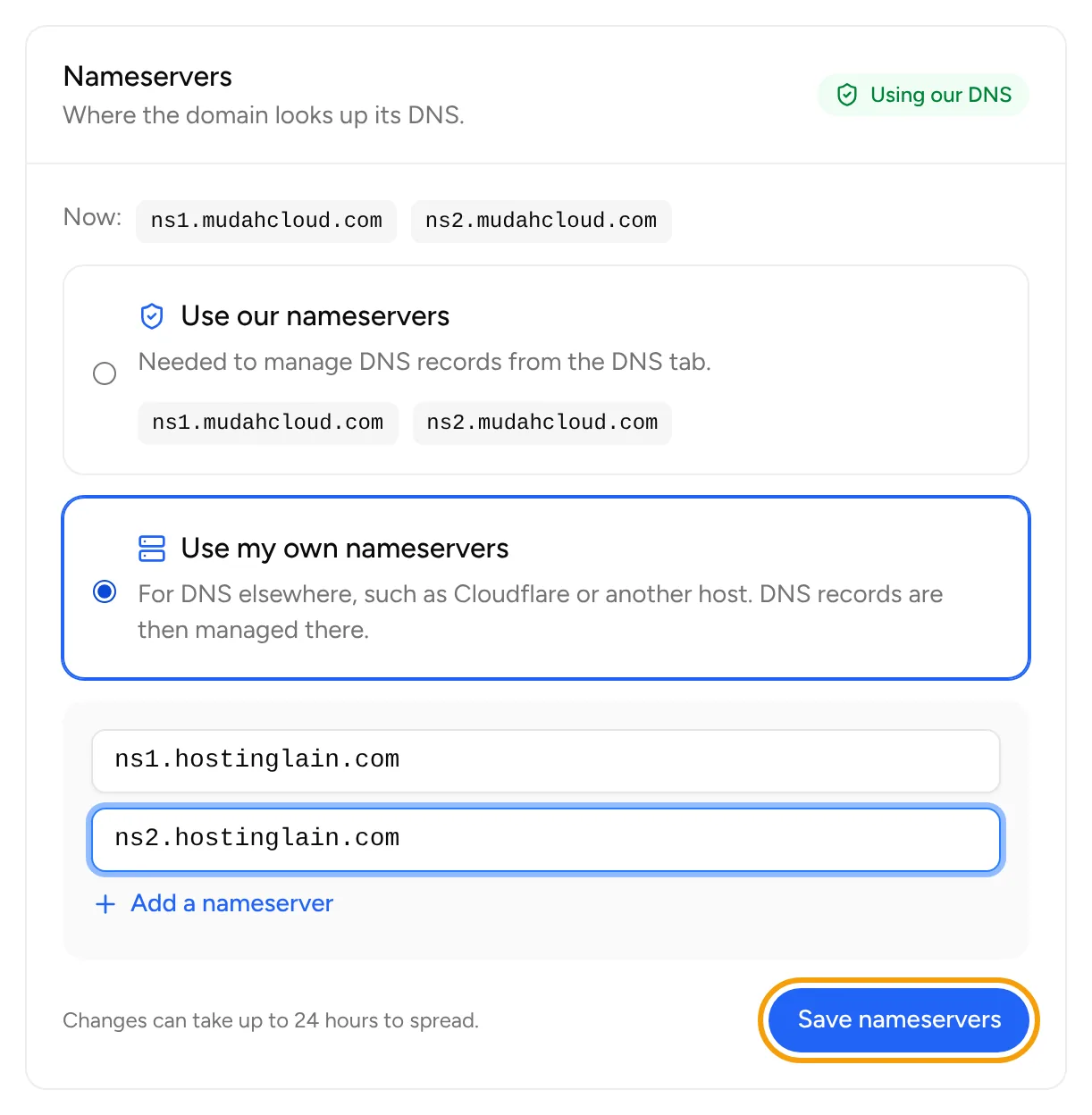
The Manage domain section only appears once the domain is active. If the registrar refuses the change, the error is shown below the nameserver fields.
Step 2b: domain registered somewhere else
- Sign in to the panel of the registrar where you bought the domain.
- Find the nameserver settings (the name differs per registrar, for example "Nameservers" or "Manage DNS").
- Choose the option to use your own or custom nameservers, then enter the nameservers from step 1.
- Save the change.
If you cannot find the setting, contact that registrar's support. You can also move the domain to Mudah Cloud so everything is managed in one place. See the domain transfer guide.
Step 3: wait for propagation
Nameserver changes need time to spread across the internet, up to 24 to 48 hours. During this time some visitors may still reach the old server.
To check which nameservers are in effect, you can run this command in a terminal:
nslookup -type=ns yourdomain.com
Once the nameservers are active
When the domain uses the hosting nameservers, DNS records (A, CNAME, MX, TXT) are managed in the hosting control panel, not in the DNS records section of the client area. In cPanel, look for Zone Editor. In DirectAdmin, look for DNS Management.
If something goes wrong
- The website still does not load after 48 hours: check the nameservers at your registrar again and make sure there are no typos.
- You want to use only an A record without changing nameservers: point the domain's A record to the IP address of the hosting server. If you cannot find that IP address, ask in a ticket.
For other help, open Support and then Tickets, create a new ticket, and choose the Technical support department.