






This guide explains how to move a domain from another registrar to Mudah Cloud. Once the transfer is complete, the domain shows up under Domain Name and you can manage its nameservers, DNS records and renewals from the client area.
Before you start
Check the following at your current registrar:
- The domain is still active and has not expired.
- You can open the domain owner's contact email, because the current registrar or the registry may send an approval email to that address.
- For many extensions, such as .com, a domain registered or transferred within the last 60 days cannot be moved yet.
Step 1: unlock the domain at your current registrar
- Sign in to your current registrar's panel.
- Find the transfer lock setting (often called "Domain Lock", "Registrar Lock" or "Transfer Lock").
- Turn the lock off and save.
If your current registrar uses WHOIS privacy protection, some registrars ask you to turn it off first so the approval email can arrive.
Step 2: get the transfer code (EPP)
In your current registrar's panel, find the option to request the transfer code. It may be called "EPP code", "Auth code" or "Authorization code". Some registrars show the code right away, others send it by email. Keep this code, you need it in the next step.
Step 3: order the transfer at Mudah Cloud
- In the client area, open Services and then Domain Name, then click Order.
- Search for your domain name. Because the domain is already registered, the result is marked Already registered. Click Transfer next to that result.
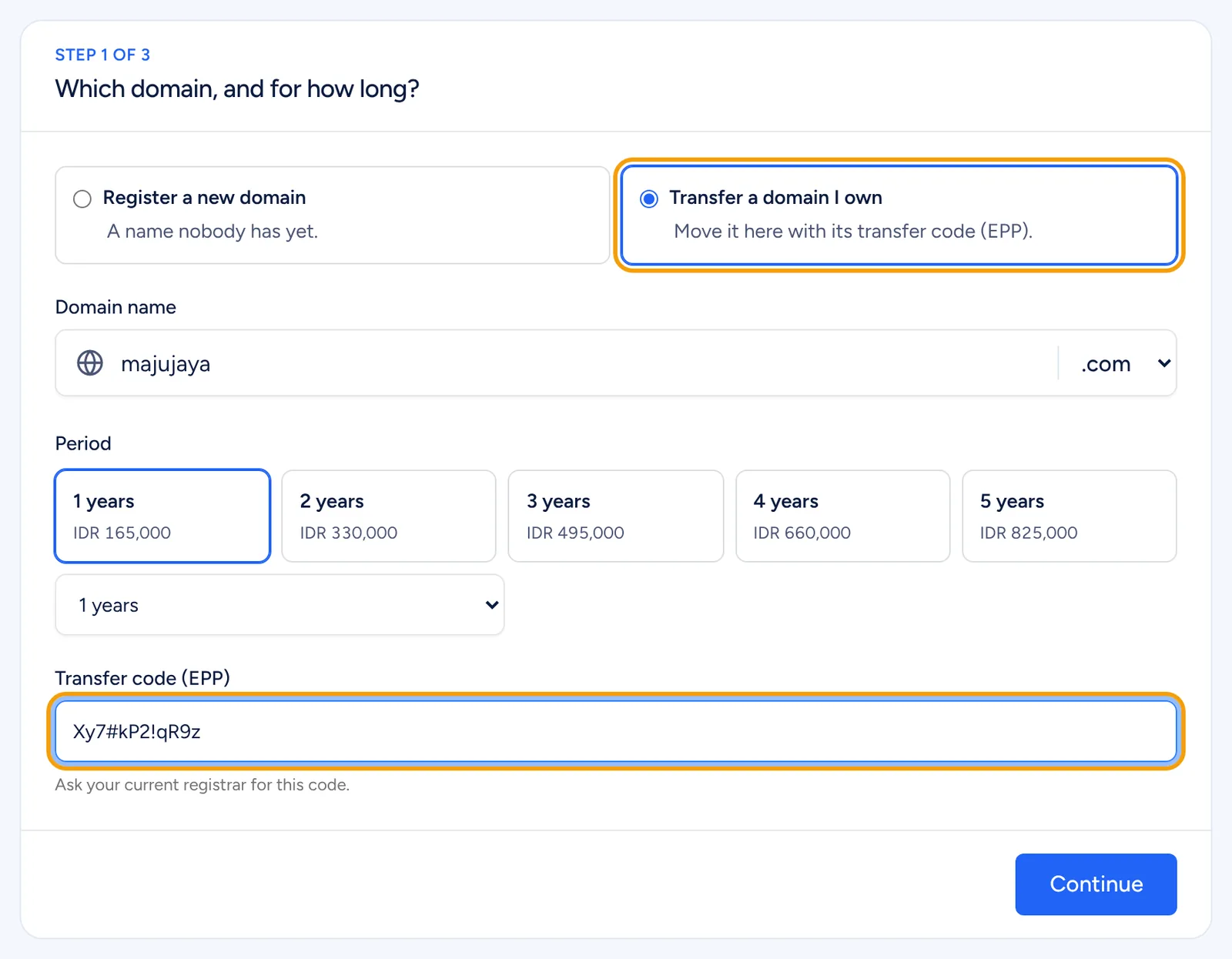
- On the Order a domain page, make sure Transfer a domain I own is selected. If that option cannot be clicked, the extension cannot be transferred through online ordering yet.
- Check the Domain name and Extension, then choose the Period.
- Enter the code from step 2 in Transfer code (EPP).
- Click Continue until the last step, tick the Terms of Service checkbox, then go on to payment.
- Pay the invoice that opens. See the guide on paying an invoice if needed.
Step 4: approve the transfer
Once the invoice is paid, we send the transfer request to the registry. The domain page will show the message "Transfer in progress".
Your current registrar may send an email asking you to approve the transfer. Open it and approve. A transfer usually completes within 5 days. Do not change the domain's details at your current registrar during this time.
After the transfer completes
- Open Services and then Domain Name and click your domain.
- Open the Nameservers & Security tab, check the Nameservers and make sure they are what you want.
- Under Transfer lock, lock the domain if it is still unlocked, so it cannot be moved without your consent.
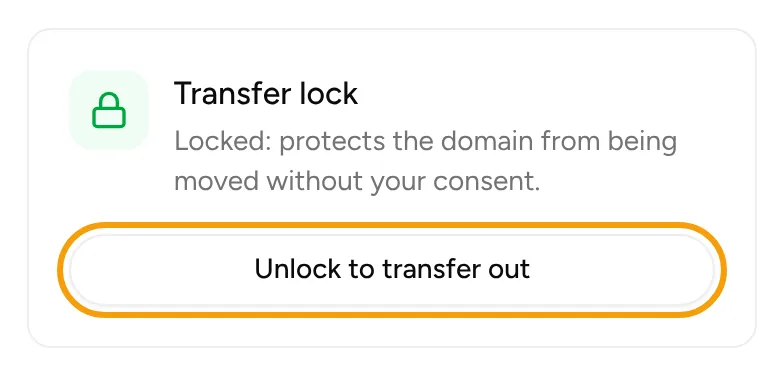
If you ever want to move the domain from Mudah Cloud to another registrar, the same section has an Unlock button and a Transfer code (EPP) row with a Show button.
If something goes wrong
- The transfer code is rejected: ask your current registrar for a new code and make sure the domain is unlocked.
- The transfer has not finished after 5 days: look for the approval email in your inbox and spam folder.
Open Support and then Tickets, click New ticket, and choose the Technical support department. Mention the domain being transferred.