





A domain has to be renewed before it expires. At Mudah Cloud, renewals go through renewal invoices that are created automatically. This guide explains how to turn on auto-renew, how to pay a renewal invoice, and what happens if a domain is renewed too late.
What you need
- An active domain in your Mudah Cloud account.
- Enough account balance for the renewal price, if you want renewals paid automatically. You can top up from the Wallet menu.
How renewal works
- Some days before the domain expires (usually 14 days), the system creates a renewal invoice for it. The invoice is due before the expiry date.
- If Auto-renew is on, that invoice is paid from your balance right away. If your balance is not enough, what you have pays part of the invoice and you still need to pay the rest.
- If Auto-renew is off, you get the invoice by email and pay it yourself.
- While the renewal invoice is unpaid, we send reminder emails 14, 7, 3 and 1 day before the expiry date, on the day itself, and once afterwards.
- Once the invoice is paid, the domain is renewed at the registrar automatically and the new expiry date shows on the domain page.
There is no button to renew outside this schedule. Renewal invoices are always created by the system.
Step 1: turn on auto-renew
New domains usually have auto-renew on already. To check or change it:
- In the client area, open Services and then Domain Name.
- Look at the Auto-renew column. Click the switch in the domain's row to turn it on or off. The message Auto-renew turned on. or Auto-renew turned off. appears.
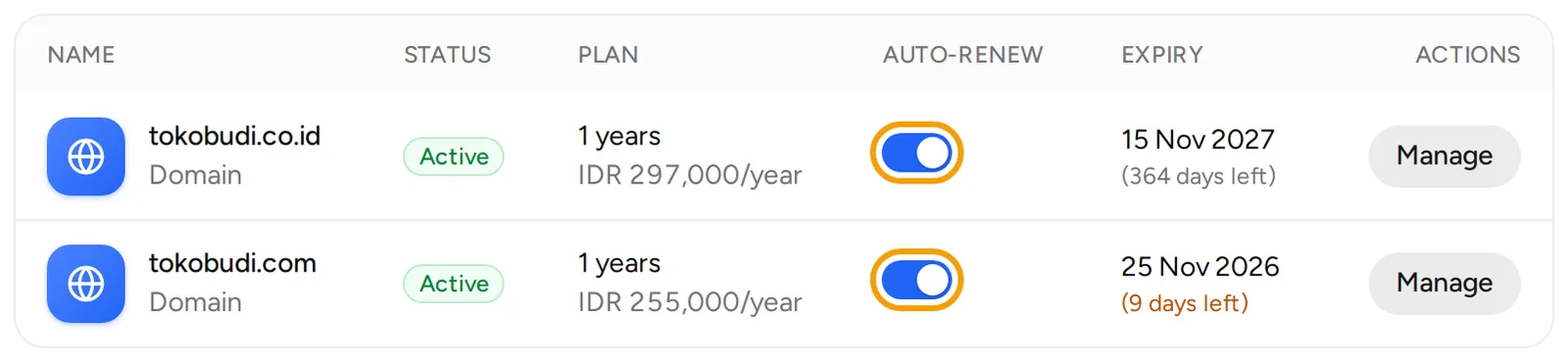
The same switch is on the domain page: in the Renewal card on the Overview tab, and in the Auto-renew section on the Billing tab. The switch does not show once the service is scheduled to be cancelled.
Step 2: make sure your balance is enough
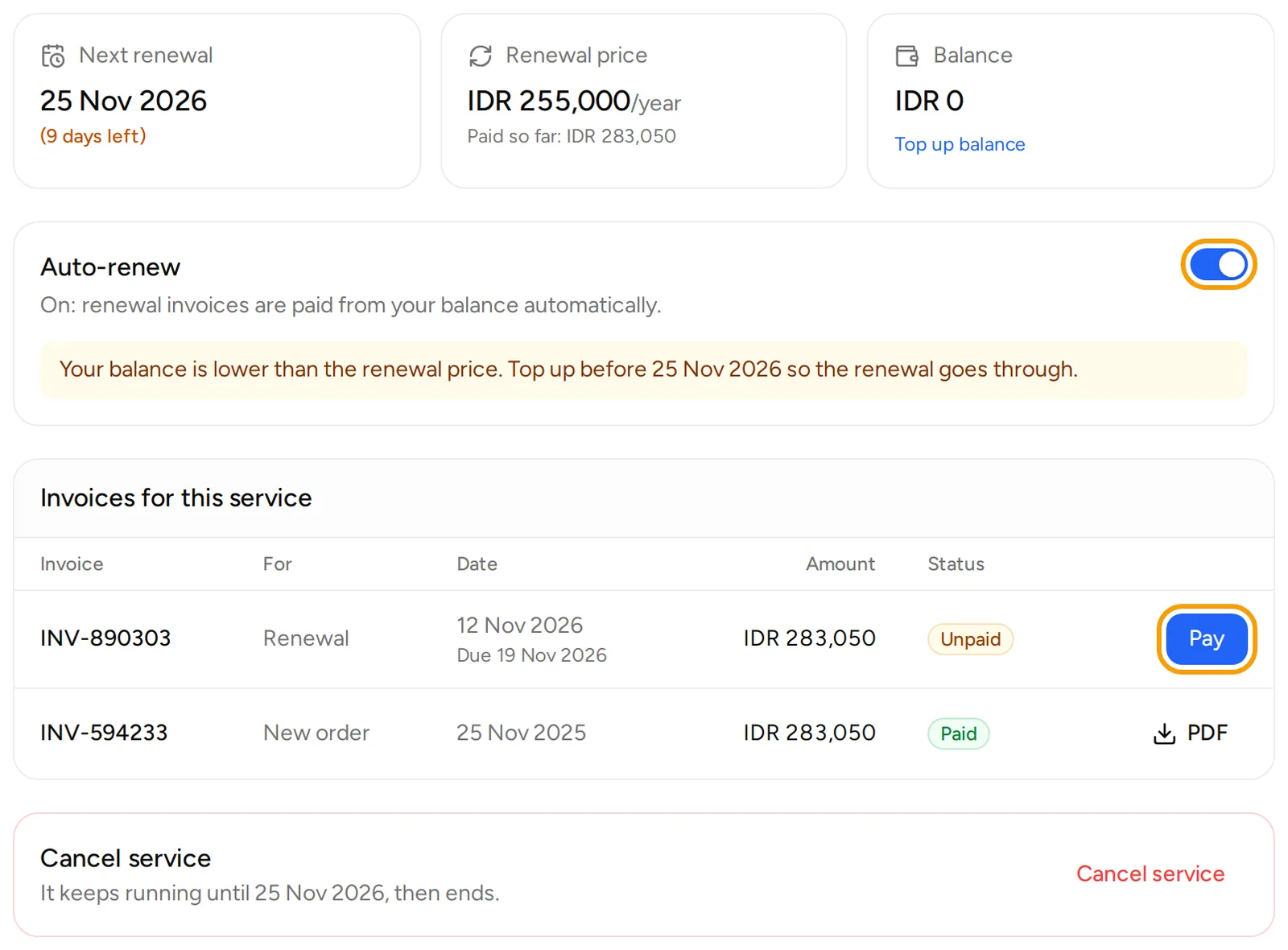
- Click your domain, then open the Billing tab.
- Check Next renewal, Renewal price and Balance.
- If your balance is lower than the renewal price, a yellow message Your balance is lower than the renewal price appears. Click Top up balance and top up before the date it mentions.
Step 3: pay an open renewal invoice
If auto-renew is off, or your balance was not enough when the invoice was created, the renewal invoice stays open.
- On the Billing tab, look at Invoices for this service. A renewal invoice says Renewal in the For column and has the status Unpaid.
- Click Pay, then choose how to pay. See the guide on paying an invoice if needed.
- Once paid, the invoice status changes to Paid and Next renewal moves forward by the domain's period.
Topping up your balance does not pay an invoice that is already open. Open the invoice and click Pay with balance, or use another payment method.
If a domain passes its expiry date
- If the renewal invoice is still unpaid on the expiry date, the domain service is suspended and its status becomes Expired. The Overview tab shows Suspended. Pay the open invoice to reactivate.
- You can still pay the renewal invoice. Once it is paid, the service is active again and we renew the domain at the registrar. If the registrar refuses the renewal, we retry it automatically and our team is notified.
- If the domain stays suspended for too long, the service is cancelled. You get a warning email before that happens. We do not delete the domain, but it expires at the registry and someone else can register it.
- After the expiry date, whether a domain can still be renewed and at what cost depends on the registry's rules for that extension. Do not wait until after the expiry date.
Troubleshooting
- Your balance is enough but the renewal invoice is still Unpaid: the balance is only used automatically when the invoice is created. Open the invoice and click Pay with balance.
- The expiry date has not changed after paying: wait a few minutes and reload the domain page.
- The domain has already expired and you want to know whether it can still be saved: open a ticket as soon as possible.
Open Support and then Tickets, click New ticket, and choose the Billing department. Mention the domain name and the invoice number.