






This guide explains how to manage DNS records for a domain bought at Mudah Cloud. When you are done, you can point the domain to a server, connect email, or add verification records from other services.
Before you start: check the nameservers
The DNS records section in the client area only applies while the domain uses the registrar's default DNS nameservers. If the domain already points to hosting nameservers (for example after following the guide on pointing a domain to hosting), records you change here are not used. In that case, manage DNS in the hosting control panel: Zone Editor in cPanel or DNS Management in DirectAdmin.
Opening the DNS settings
- Sign in to the client area.
- In the sidebar, open Services and then Domain Name.
- Click the domain you want to manage.
- Open the DNS tab. The existing records are loaded from the registrar.
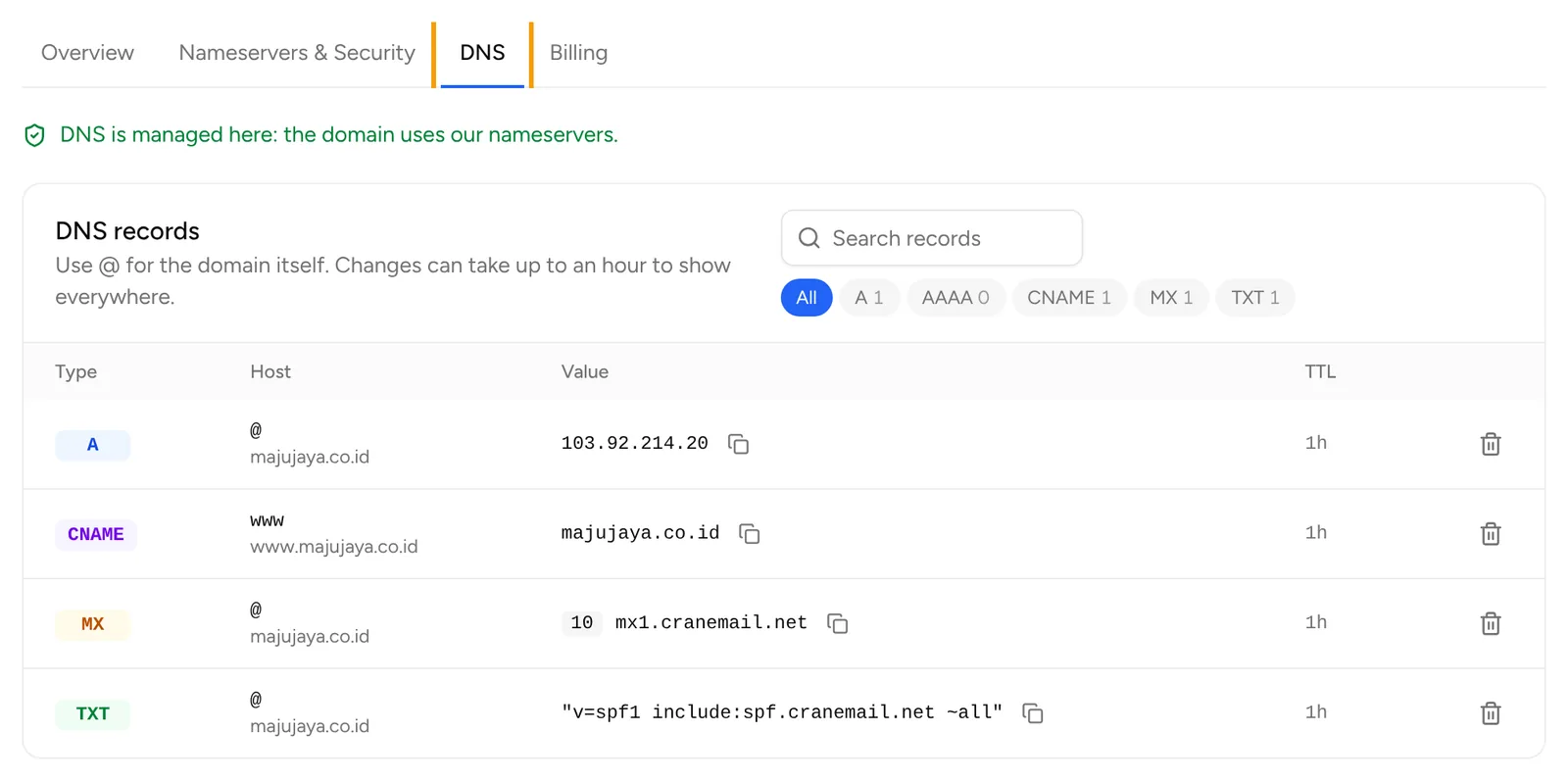
This section only appears for domains with the status active.
Adding a record
Below the record list there is an Add a record section.
- Choose the record type: A, AAAA, CNAME, MX or TXT.
- Fill in Host. Use
@for the domain itself, or a subdomain name such aswwwormail. - Fill in Value for the record type. For MX, also fill in Priority.
- Click Add record.
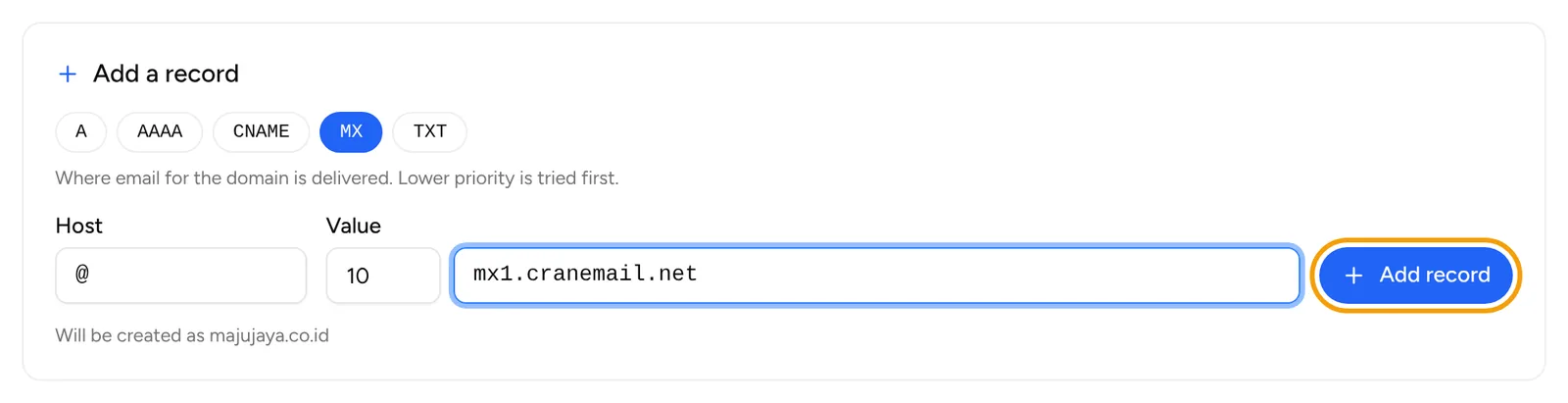
Example values for each type:
- A: the server's IPv4 address, for example
203.0.113.10. - AAAA: the server's IPv6 address.
- CNAME: the target host name, for example
target.example.com. - MX: the mail server, for example
mail.example.com, with a numeric priority (lower numbers are tried first). - TXT: free text, for example an SPF record
v=spf1 include:_spf.google.com ~allor a verification code from Google, Microsoft and other services.
If an entry is not valid, the error is shown below the form.
Deleting a record
- Find the record in the list.
- Click the trash icon at the end of its row.
- Confirm the deletion.
There is no edit button. To change a record's value, add a new record with the correct value, then delete the old one.
How long changes take
Record changes usually start to show within an hour, but on some networks they can take up to 24 to 48 hours because of DNS caching. You can check the result with:
nslookup -type=mx yourdomain.com
Replace mx with a, cname or txt for the record you want to check.
If something goes wrong
- The DNS records section shows an error: the registrar cannot be reached right now. Reload the page a little later.
- You changed the nameservers and want to use DNS from the client area again: you need the registrar's default nameservers. Ask for them in a ticket.
Open Support and then Tickets, click New ticket, and choose the Technical support department. Mention the domain name and the records you want to set.