






This guide explains how to create an address like name@yourdomain.com in cPanel and use it in a mail app. When you are done, you can send and receive business email from webmail, your computer or your phone.
What you need
- A Cloud Hosting service with cPanel and the status active.
- A domain that already points to the hosting. See the guide on pointing a domain to hosting. For mail to arrive at the hosting, the domain's MX record must point to the hosting server. If the domain uses the hosting nameservers, cPanel usually sets this up already.
If your hosting uses DirectAdmin, the steps are similar but the menu names differ. Look for E-Mail Accounts in DirectAdmin.
Step 1: open cPanel from the client area
- Sign in to the client area.
- In the sidebar, open Services and then Cloud Hosting.
- Click your hosting service.
- Open the Access tab and click Open cPanel. cPanel opens in a new tab without asking you to sign in again.
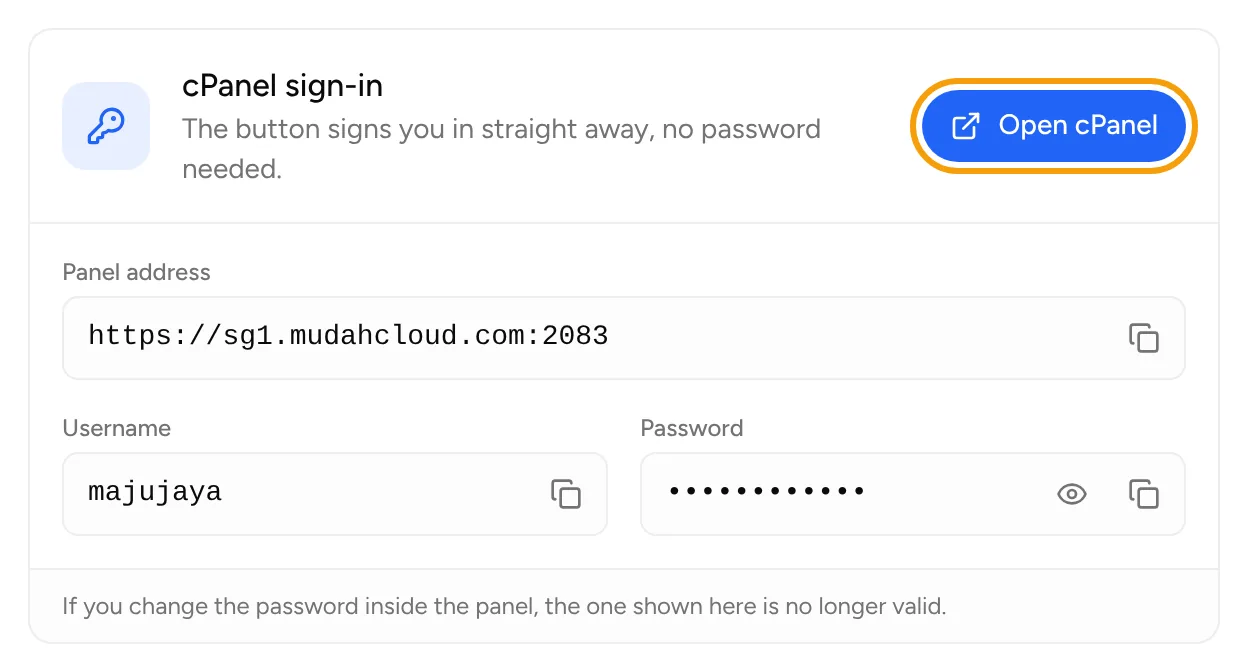
The Open cPanel button only appears while the service is active. You can also sign in manually at the Panel address with the Username and Password shown in the same section. Click the eye icon to reveal the password.
Step 2: create the email account
- In cPanel, go to the Email section and click Email Accounts.
- Click the Create button.
- Choose the domain if you have more than one.
- Enter the username, the part before the @, for example
infooradmin. - Set a strong password, or use the Generate button and save the password.
- Adjust the storage quota if needed.
- Click Create.
The new account appears in the Email Accounts list. To try it, click Check Email next to the account to open webmail.
Step 3: connect it to a mail app
- In the Email Accounts list, click Connect Devices next to the account.
- cPanel shows the manual settings: the incoming server (IMAP or POP3), the outgoing server (SMTP) and the port numbers. Use the settings shown on this page, because the values can differ per server.
- In your mail app (Outlook, Thunderbird, Apple Mail, Gmail on your phone and others), add a new account and choose manual setup.
- Enter the full email address as the username, then the email account password (not the cPanel password).
- Enter the servers and ports from the Connect Devices page. Choose an SSL/TLS connection when available.
Choose IMAP if you read mail on more than one device, because the mailbox stays on the server and stays in sync. POP3 downloads mail to a single device.
The Connect Devices page also offers automatic configuration scripts for some apps, such as Apple Mail on iPhone and Mac.
If something goes wrong
- Mail does not arrive: check the domain's MX record. If the domain does not point to the hosting yet, mail will not reach cPanel.
- The mail app cannot sign in: make sure the username is the full email address and the password is the email account password.
- Manual sign-in to cPanel fails: if you changed the password inside cPanel, the password shown in the client area is no longer valid. Set a new one in the Change cPanel password section on the hosting service page.
For other help, open Support and then Tickets, click New ticket, choose the Technical support department, and pick your hosting service under Related service (optional).