





Softaculous is an app installer built into cPanel and DirectAdmin. It sets up WordPress together with its database, so you do not have to upload any files yourself.
What you need
- A Cloud Hosting service that is active. See Get started with Cloud Hosting.
- A domain pointed to the hosting. You can install before the domain is live, but the site only opens on the domain once the nameservers are active. See Point a domain to your hosting.
- A working email address for the WordPress admin account.
Step 1: sign in to the control panel
- Sign in to the client area.
- In the sidebar, open Services and then Cloud Hosting, then click Manage on your service.
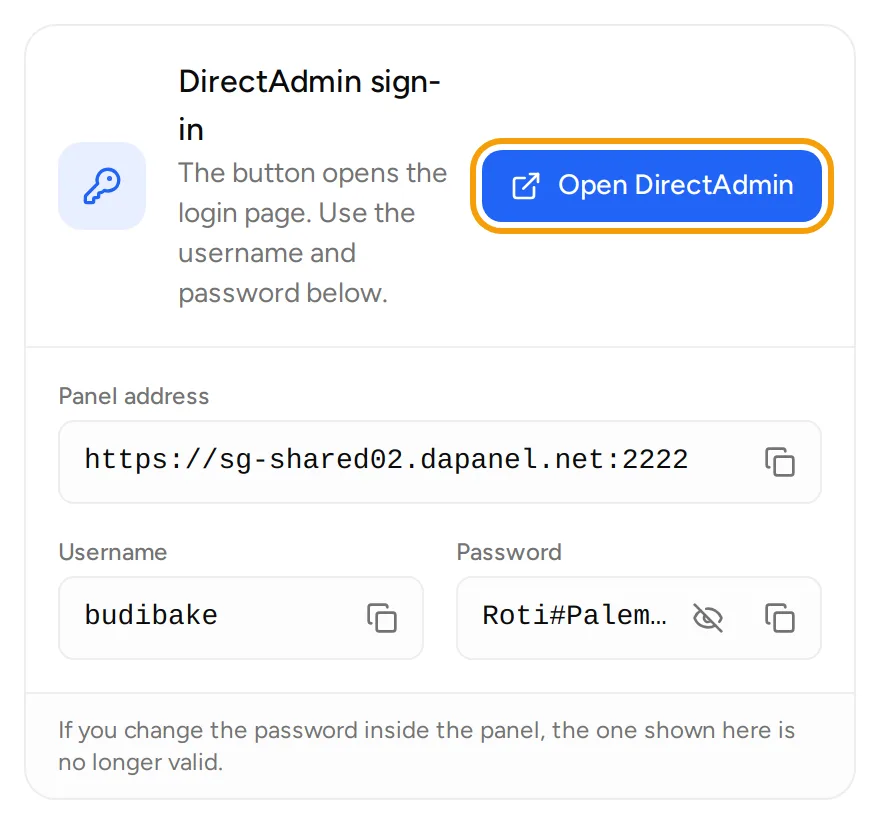
- Click Open cPanel or Open DirectAdmin at the top of the page.

For cPanel, you are signed in straight away without a password. For DirectAdmin, the login page opens. Copy the Username and Password from the Access tab and sign in.
Step 2: open Softaculous
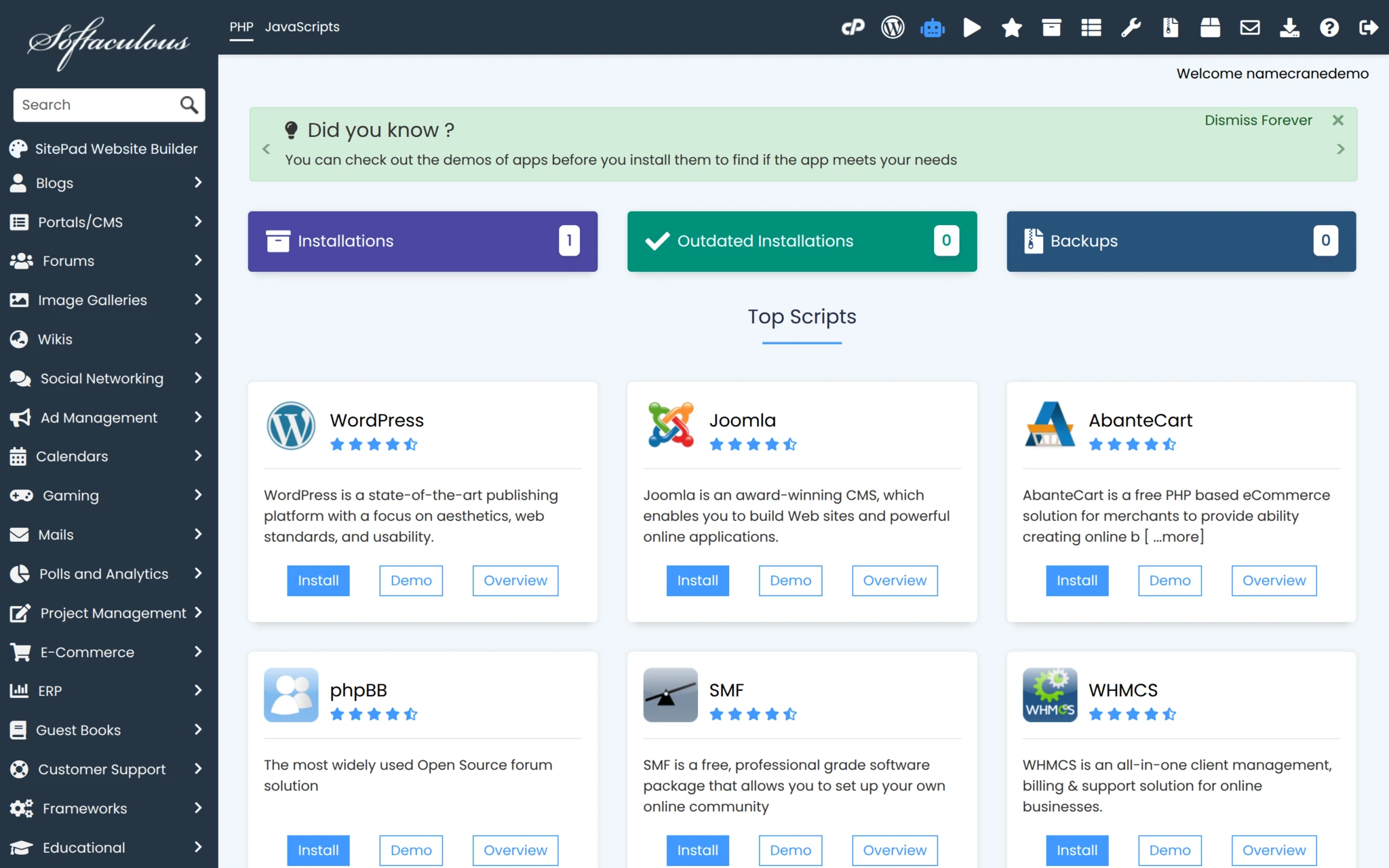
- In cPanel, find Softaculous Apps Installer on the home page, or type "Softaculous" in the search box.
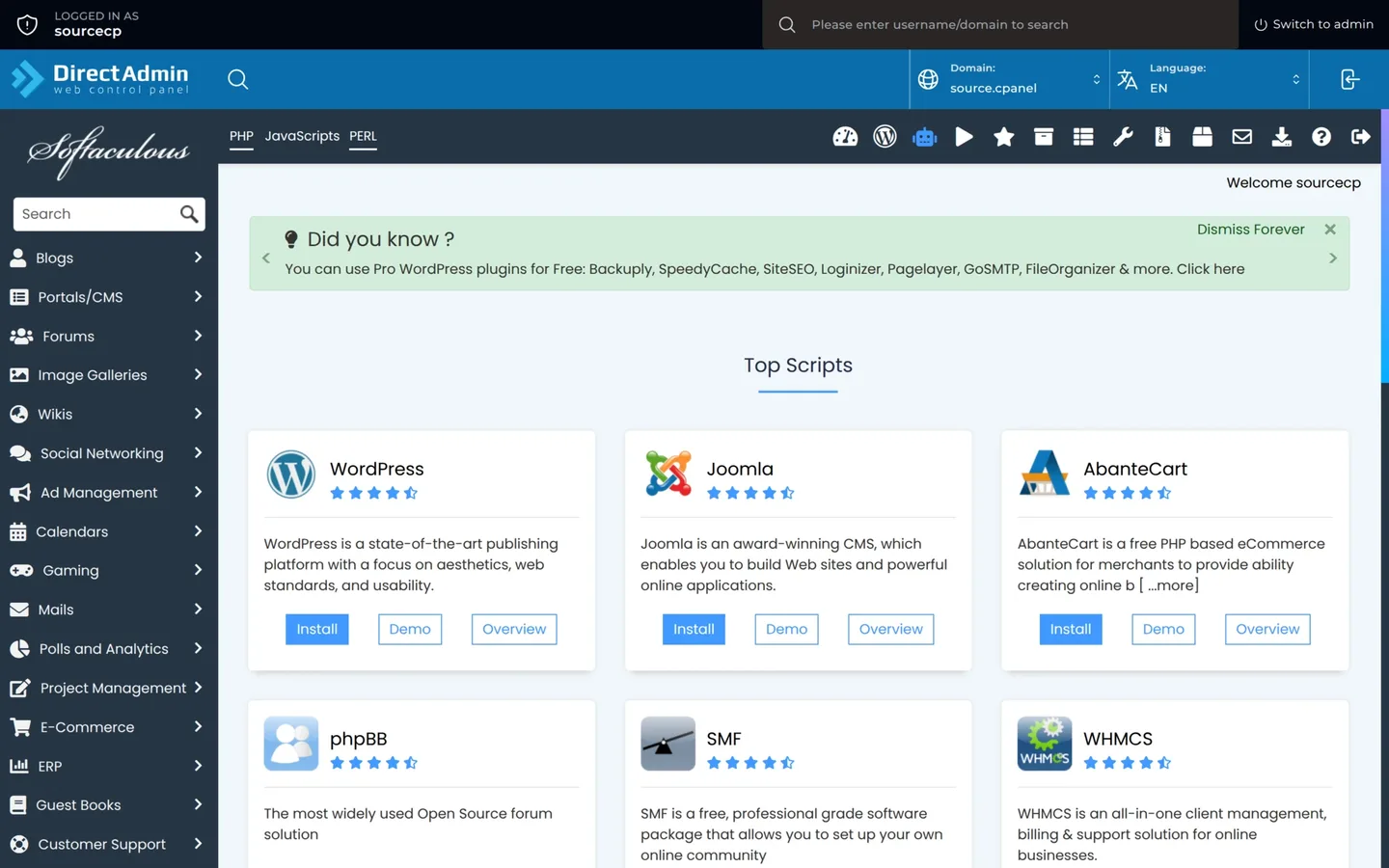
- In DirectAdmin, find the Softaculous Auto Installer icon, or type "Softaculous" in the search box.
Step 3: choose WordPress
- On the Softaculous home page, find the WordPress card under Top Scripts. It is usually the first one.
- Click Install on that card. The install form opens.
Step 4: fill in the install details
Fill in the main fields below. The other fields can stay at their defaults.
- Choose Protocol: pick
https://so the site uses SSL. - Choose Domain: pick your domain, for example
tokobudi.com. - In Directory: leave this empty so WordPress opens at the main address (
https://tokobudi.com). If you enter something likewp, WordPress opens athttps://tokobudi.com/wp. - Site Name and Site Description: the site's name and tagline. You can change both later in the WordPress dashboard.
- Admin Username: do not use
admin. Pick a name that is hard to guess. - Admin Password: use a strong password and keep it somewhere safe.
- Admin Email: your email address. WordPress password reset emails go here.
- Select Language: pick the site language, for example English or Indonesian.
Click Install at the bottom. It usually finishes within a minute or two.
Step 5: sign in to the WordPress dashboard
When it is done, Softaculous shows two links: the website address and the admin address.
- Open the admin address, which is your domain followed by
/wp-admin, for examplehttps://tokobudi.com/wp-admin. - Sign in with the Admin Username and Admin Password from step 4.
- From the dashboard you can pick a theme, add pages and install plugins.
The installation is also listed in Softaculous. From there you can see your installations, update WordPress or remove an installation.
Troubleshooting
- Your domain is not listed under Choose Domain: the domain has not been added to the hosting account. The package's main domain is already there; an extra domain has to be added in the panel first (Addon Domains in cPanel, Domain Setup in DirectAdmin).
- Softaculous says the folder is not empty: the target folder already has files, such as a default
index.html. Delete them in File Manager, or pick another folder. - The site shows an SSL warning: the free SSL certificate can only be issued once the domain points to the hosting. Wait for the nameservers to become active, then try again.
- You forgot the WordPress admin password: click Lost your password? on the wp-admin login page and check the admin email.
For other help, open Support and then Tickets, click New ticket, choose Technical support and pick your hosting service.