





This guide covers the first steps after paying for Cloud Hosting: finding your service, getting into the control panel, and connecting your domain so the website opens.
What you need
- A paid Cloud Hosting service. Once the hosting account is ready, we email the panel sign-in details to your account email.
- The domain you will use for the website, registered at Mudah Cloud or elsewhere.
Step 1: open your hosting service
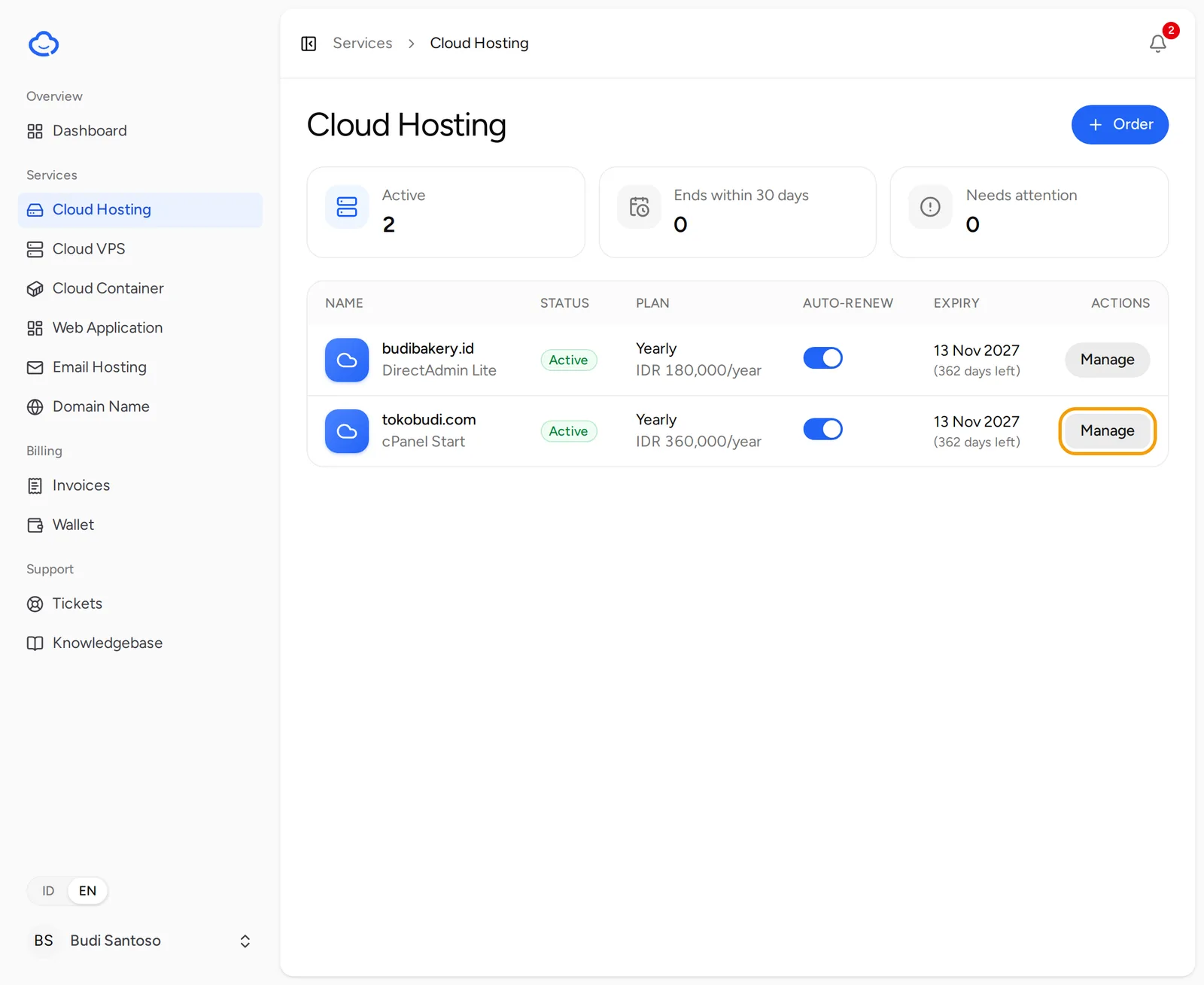
- Sign in to the client area.
- In the sidebar, open Services and then Cloud Hosting.
- On your service's row, click Manage.
If the service shows Payment received. Our team is setting this up and will email you when it is ready., wait for that email. The panel button only appears once the service is Active.
Step 2: get to know the service page
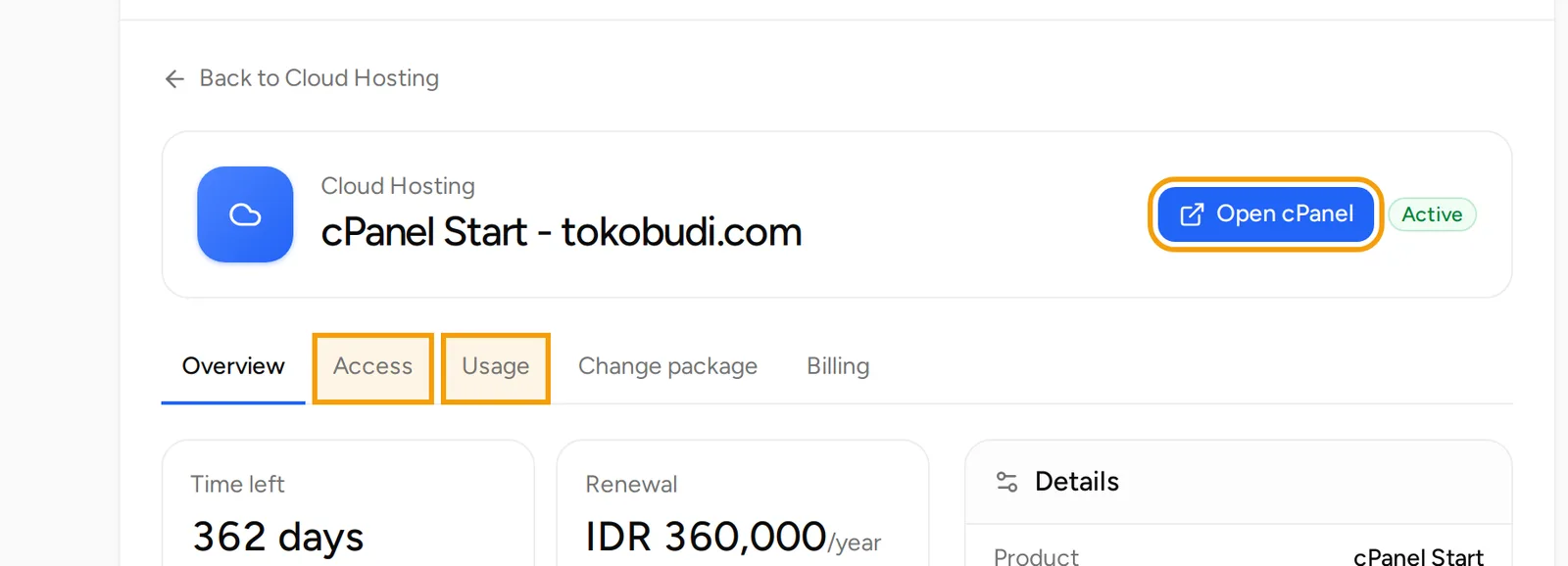
The top of the page shows the package, the domain and the status. On the right is the Open cPanel or Open DirectAdmin button, depending on the panel you chose when ordering.
Below it are several tabs:
- Overview: time left, renewal, a short usage summary and the package details.
- Access: the panel sign-in details and the hosting nameservers.
- Usage: disk space and bandwidth.
- Change package: move up or down. You only pay the difference.
- Billing: invoices, auto-renew and cancellation.
Step 3: sign in to the control panel
- Open the Access tab.
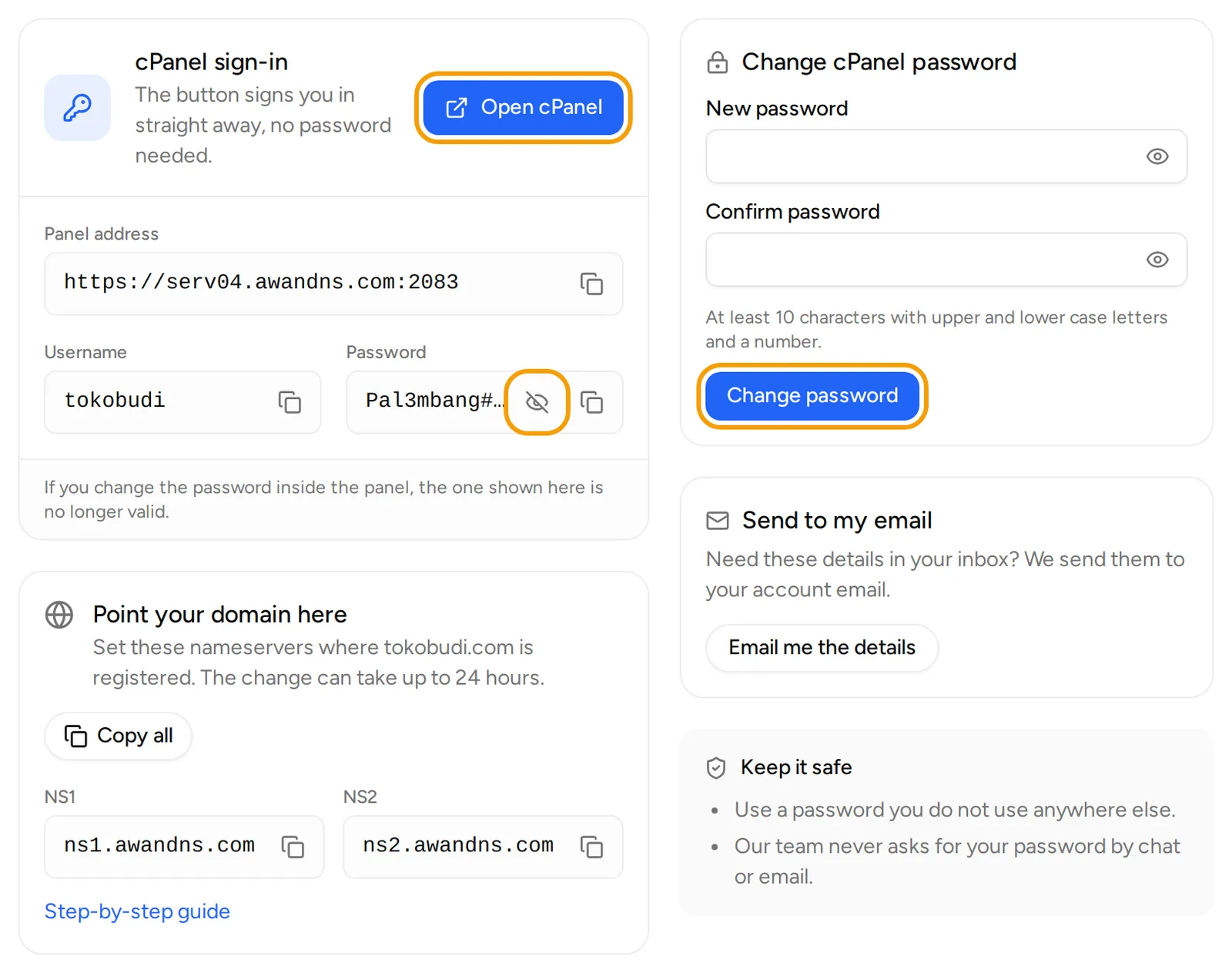
- In the cPanel sign-in or DirectAdmin sign-in section, click Open cPanel or Open DirectAdmin. The panel opens in a new tab.
- For cPanel, the button signs you in straight away, no password needed.
- For DirectAdmin, the button opens the login page. Enter the Username and Password shown below it.
Click the eye icon in the Password field to show the password, or the copy icon to copy it. The Panel address is the address to open the panel directly in a browser.
Step 4: change the panel password (optional)
- In the Change cPanel password (or Change DirectAdmin password) card, fill in New password and Confirm password.
- Use at least 10 characters with upper and lower case letters and a number. Stick to letters, numbers and common symbols, with no spaces or quotes.
- Click Change password.
Change the password from the client area so the one shown on the Access tab stays the same as the panel password. If you change the password inside the panel, the one shown here is no longer valid.
Need the sign-in details in your inbox? Click Email me the details. We send them to your account email.
Step 5: point your domain to the hosting
The website opens on your domain once the domain uses the hosting nameservers.
- On the Access tab, find the Point your domain here section.
- Click Copy all to copy every nameserver.
- Set these nameservers where your domain is registered. The change can take up to 24 hours.
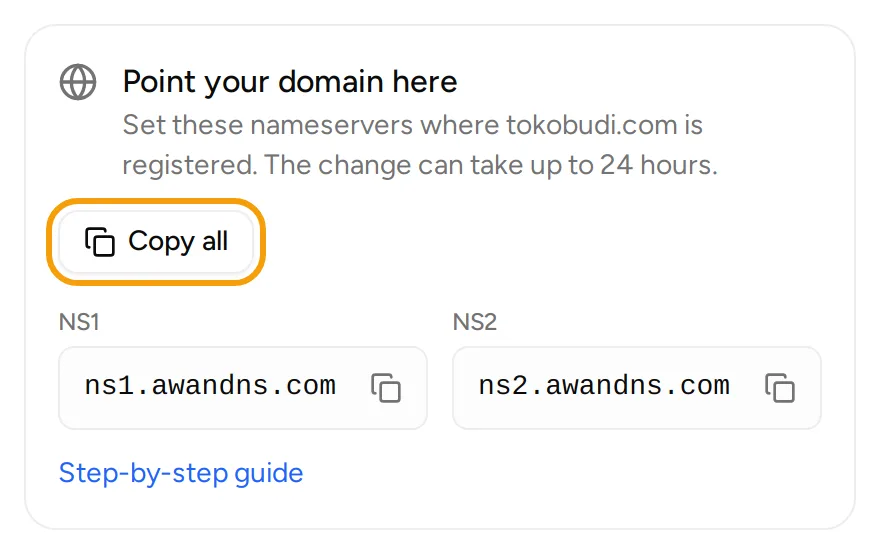
The full steps, for domains at Mudah Cloud and at other registrars, are in the guide Point a domain to your hosting.
Step 6: keep an eye on usage
Open the Usage tab to see Disk space (files, email and databases) and Bandwidth this month. The figures come from the server and are refreshed every 30 minutes.
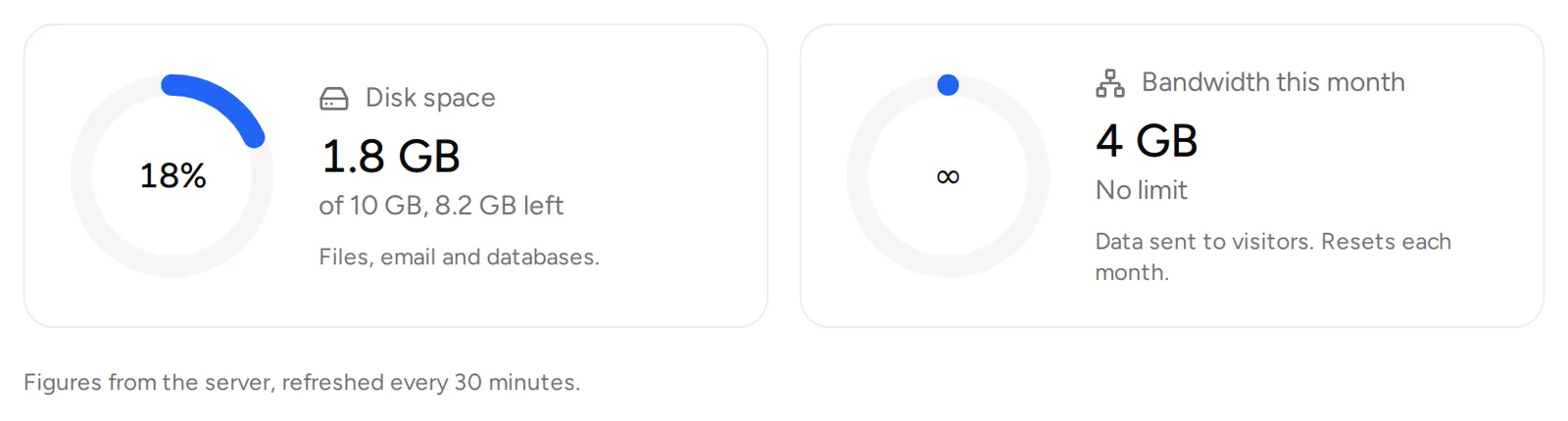
When usage gets close to the package limit, a See packages button appears so you can move to a bigger package.
Next steps
- Install WordPress with Softaculous
- Upload a website and its database
- Create a business email address
Troubleshooting
- The Open cPanel or Open DirectAdmin button is missing: the service is not active yet, is still being set up, or is suspended. For a suspended service, pay the open invoice on the Billing tab.
- DirectAdmin refuses the login: copy the password again from the Access tab. If it was changed inside the panel, set a new one with the Change DirectAdmin password card.
- The Usage tab shows Usage is not available right now.: try again a little later.
- The website does not open on the domain yet: the nameservers are not active yet. Wait up to 24 hours, then check the nameserver settings at your registrar again.
For other help, open Support and then Tickets, click New ticket, choose Technical support and pick your hosting service.