






Every page of a Mudah Website is made of ready sections, such as Hero, Services, Price list, Gallery, Testimonials and Contact. You fill in the text and photos and set their order. The website's admin panel is in Indonesian; the English is given in brackets.
What you need
- An active Mudah Website. See Get started with Mudah Website.
- Your text and photos. Photos can be uploaded straight from your phone.
Step 1: open the list of pages
- Sign in to the admin panel (in your Mudah Cloud account, click Manage website, or Edit pages to come straight here).
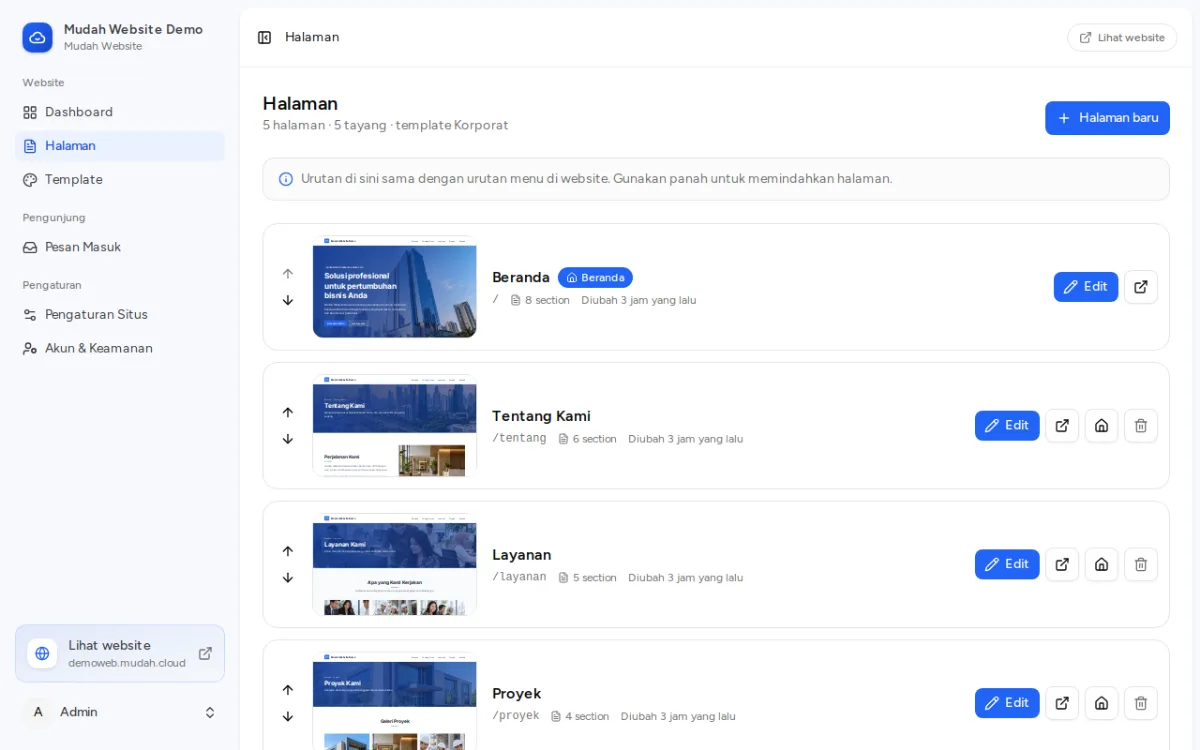
- In the sidebar, click Halaman (Pages). The order here is the order of the website's menu; use the arrows to change it.
Step 2: change a section
- Click Edit on the page you want to change.
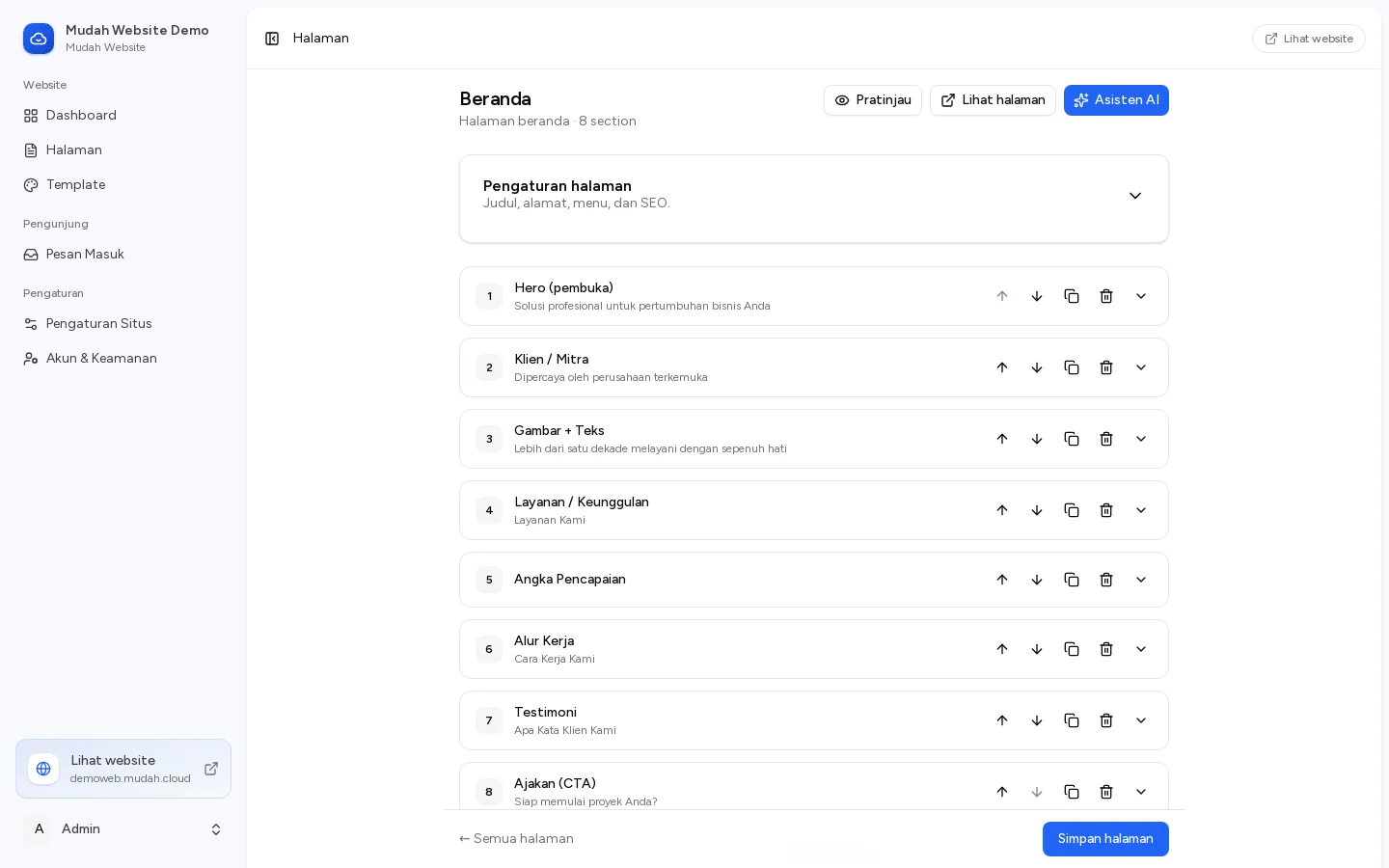
- Click a section to open it, then change its text, photos or buttons.
- Use the arrows to move a section up or down, the copy icon to duplicate it and the bin to delete it.
- Click Tambah section (Add section) to add one, for example Galeri (Gallery) or Tanya Jawab (FAQ).
Step 3: preview, then save
- Click Pratinjau (Preview) to see the result before saving.
- Click Simpan halaman (Save page). The change shows on the website at once.
Under Pengaturan halaman (Page settings) you change the title, the page address, whether it is in the menu and the text for Google. Untick Terbit (bisa dilihat pengunjung) (Published) to keep the page as a draft only you can see.
Making a new page
- In Halaman, click Halaman baru (New page).
- Give it a title and create it, then add sections as in step 2.
To make a page the home page, click the house icon (Jadikan beranda, Make home page) in the list of pages.
Rather not write? The AI assistant can write or improve a page for you.