






Your logo, business name, WhatsApp number and address are used across the website: in the header, on the WhatsApp buttons, on the Contact page and in the footer. Fill them in once under Pengaturan Situs (Site settings). The website's admin panel is in Indonesian; the English is given in brackets.
What you need
- An active Mudah Website. See Get started with Mudah Website.
- Your logo as PNG, JPG, WEBP or SVG, up to 2 MB. A logo on a transparent background (PNG) usually looks best.
- Your business WhatsApp number and full address.
Step 1: open Site settings
- Sign in to the admin panel. The quickest way: in your Mudah Cloud account, open your website and click Manage website, or click Business details under What would you like to do? to open this page directly.
- In the admin sidebar, click Pengaturan Situs.
Step 2: name and logo
Under Identitas (Identity):
- Nama perusahaan: the name your website shows.
- Tagline: a short line about your business, for example
Kopi Nusantara since 2018. - Deskripsi singkat (Short description): used in Google results and when the website link is shared.
- Under Logo, click Pilih gambar (Choose image) and pick your logo file. Set the Favicon too, the small icon in the browser tab.
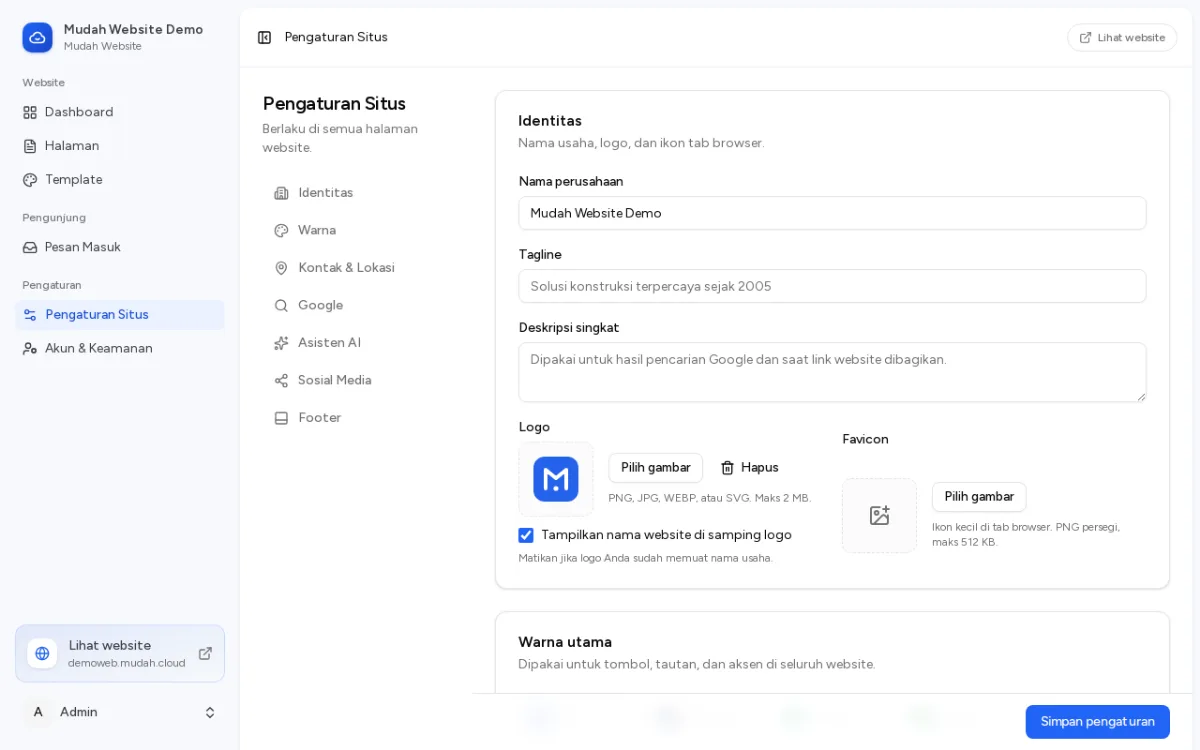
Under Warna (Colour), choose the Warna utama (main colour) of your brand. It is used for buttons, links and accents across the website.
Step 3: contact and location
Under Kontak & Lokasi (Contact & location):
- Enter your business number in WhatsApp, for example
081234567890. Every order button on the website opens a WhatsApp chat with this number, and each click is counted in your statistics. - Fill in Email and Telepon (phone) if you have them.
- Enter the full Alamat (address).
- Paste the Link Google Maps of your business location. Tick Tampilkan peta di bagian Kontak to show the map on the website.
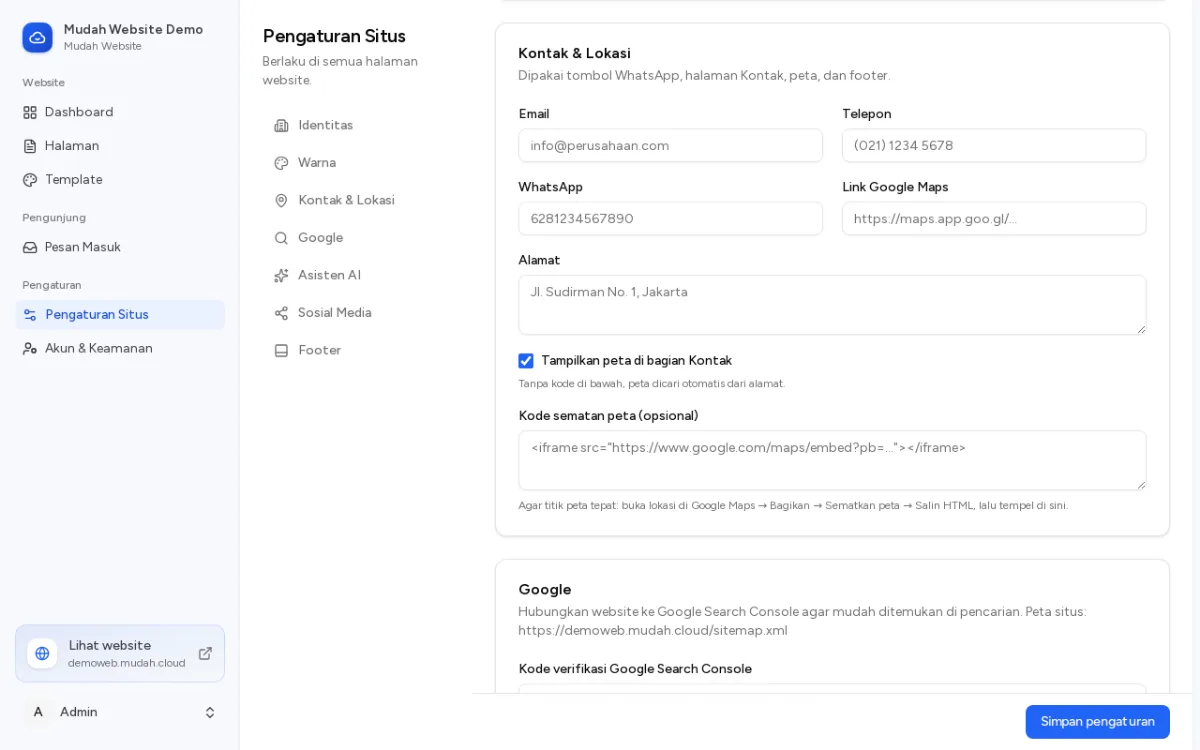
Step 4: save
Click Simpan pengaturan (Save settings) at the bottom right. Open your website to see the result; it shows at once.
Tip: fill in Sosial Media and Footer on the same page so visitors find your Instagram, TikTok or Facebook.