






The AI assistant writes your website for you: from a short description of your business, it picks a fitting template and rewrites every page. It can also make a new page or improve the text of one page.
The AI assistant runs on your Mudah Cloud AI credit. Everything it writes is paid from that credit. When it runs out, the AI stops answering until you top up.
What you need
- An active Mudah Website. See Get started with Mudah Website.
- AI credit in your Mudah Cloud account.
Step 1: top up your AI credit
- In your Mudah Cloud account, click AI Overview in the sidebar.
- Under Top up AI credit, pick an amount and pay the invoice. The credit is added once it is paid.
AI credit is separate from your account balance and counted in USD. What is left also shows on your website's overview.
Step 2: connect the AI assistant
- Open Services → Web Application and click Manage on your website.
- On the Overview tab, click Connect the AI assistant.
That is all. Mudah Cloud makes an AI API key for your website and puts it in place; nothing to copy. When your AI credit runs low, the overview shows a warning with a Top up AI credit button.
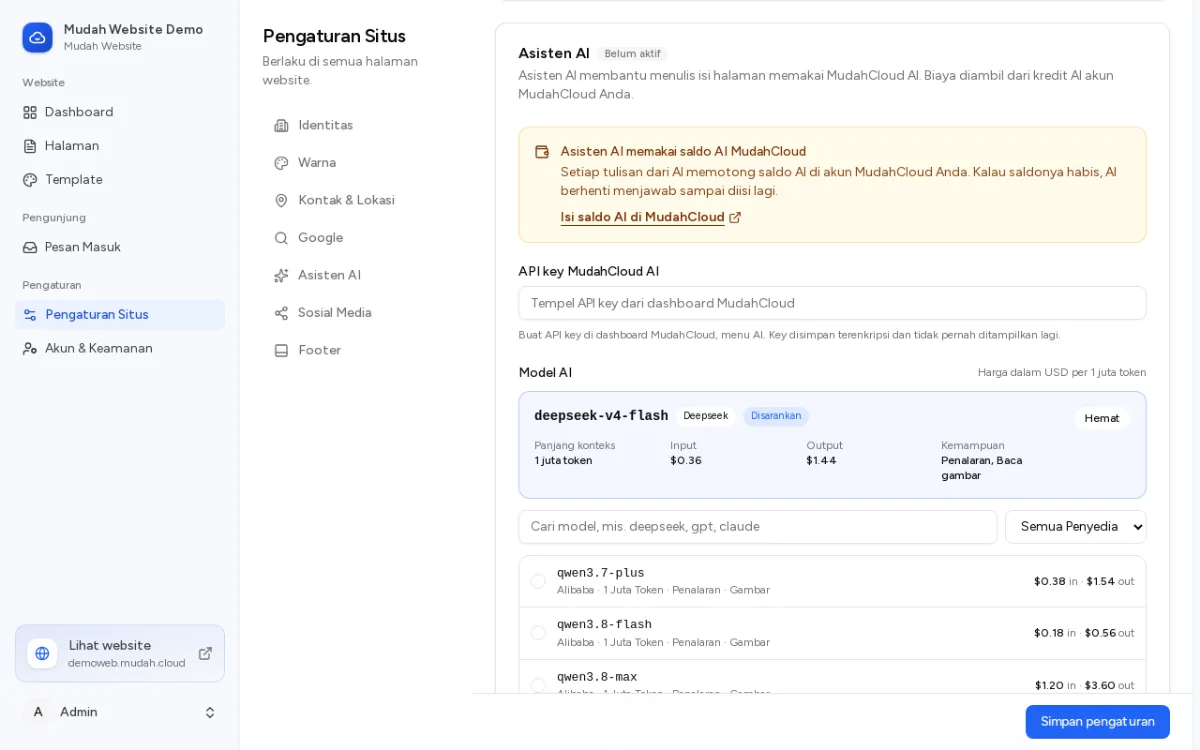
Have a key of your own? You can paste it in the admin panel under Pengaturan Situs → Asisten AI → API key MudahCloud AI and choose the Model AI.
Step 3: let the AI write your website
- Sign in to the admin panel (click Manage website).
- On the dashboard, click Buat dengan AI (Create with AI).
- Under Ceritakan usaha Anda (Tell us about your business), describe it briefly: what you sell, to whom, where, and what makes you different.
- Follow the steps. The AI picks a fitting template, writes the website's texts, then rewrites every page.
Check the result and change what does not fit. See Edit your website's pages.
Improving one page with AI
- In Halaman (Pages), click Edit on the page.
- Click Asisten AI and write what you want, for example
Make the services text shorter and more convincing. - Click Pratinjau (Preview) to see the AI's suggestion, then apply it.
- Click Simpan halaman (Save page). The suggestion is only saved after this step.
When the AI does not answer
- Your AI credit has run out: top up under AI Overview in your Mudah Cloud account, then try again.
- The AI API key was refused: click Connect the AI assistant again on your website's overview to make a new key.