





Mudah Website has more than 30 templates for different kinds of business. All of them can be tried and used any time at no extra cost. Your pages are kept for each template, so switching back brings them back.
Option 1: from your Mudah Cloud account
- Open Services → Web Application and click Manage on your website.
- On the Overview tab, click Change template.
- The template window opens. Pick a template in the list (on a phone: the grid) and see it live. On a computer you can also try the Desktop, Tablet and Phone views.
- Click Use this template (or Pick on a phone).
- Choose one:
- Switch, keep my content: the new template shows the pages you already have for its kind. The first time, its sample pages are made with your business name.
- Switch and start fresh: the template's sample pages replace yours for that kind of template.
The website uses the new template right away. Click Have a look to open it.
Option 2: from the admin panel
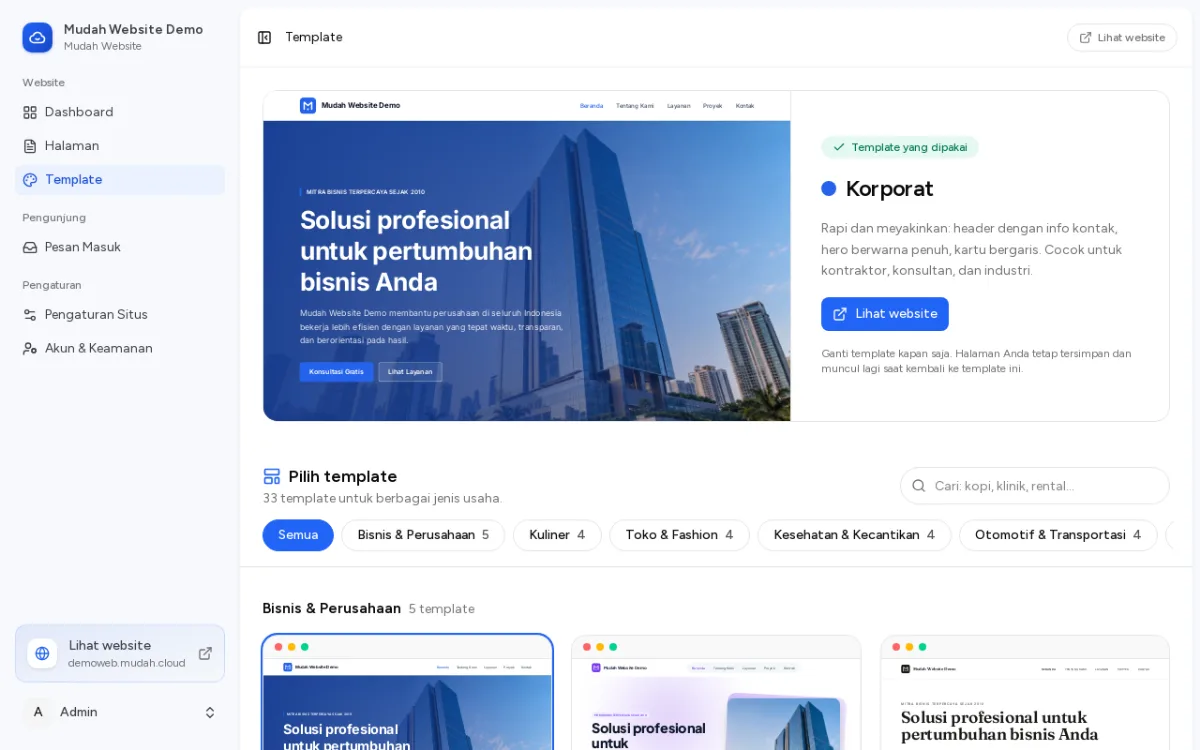
- Sign in to the admin panel and click Template in the sidebar.
- Click Contoh (Sample) to see a template with its sample content.
- Click Pakai (Use) on the one you choose.
Good to know
- The logo, business name, WhatsApp and address in Pengaturan Situs (Site settings) stay the same when you switch.
- Templates are grouped by kind of business. Your pages are kept per group, so moving between templates of the same group keeps the same pages.
- Want to see every template first? Open the template gallery.