






Forgot the password of your Mudah Website admin panel? Pick one of these.
Option 1: sign in without a password (quickest)
- Sign in to your Mudah Cloud account, open Services → Web Application and click Manage on your website.
- Click Manage website. The admin panel opens and you are signed in.
The sign-in link works once and for 2 minutes only, so it is safe.
Option 2: set a new password from your Mudah Cloud account
- On your website's Overview tab, click Admin password.
- Type a new password (at least 8 characters) and click Save password, or click Make one for me.
- The new password is shown once. Click Copy to copy it. It is also kept on the Access tab.
Option 3: reset by email
- Open the admin sign-in page at
your-website-address/admin/login. - Click Lupa kata sandi? (Forgot password?).
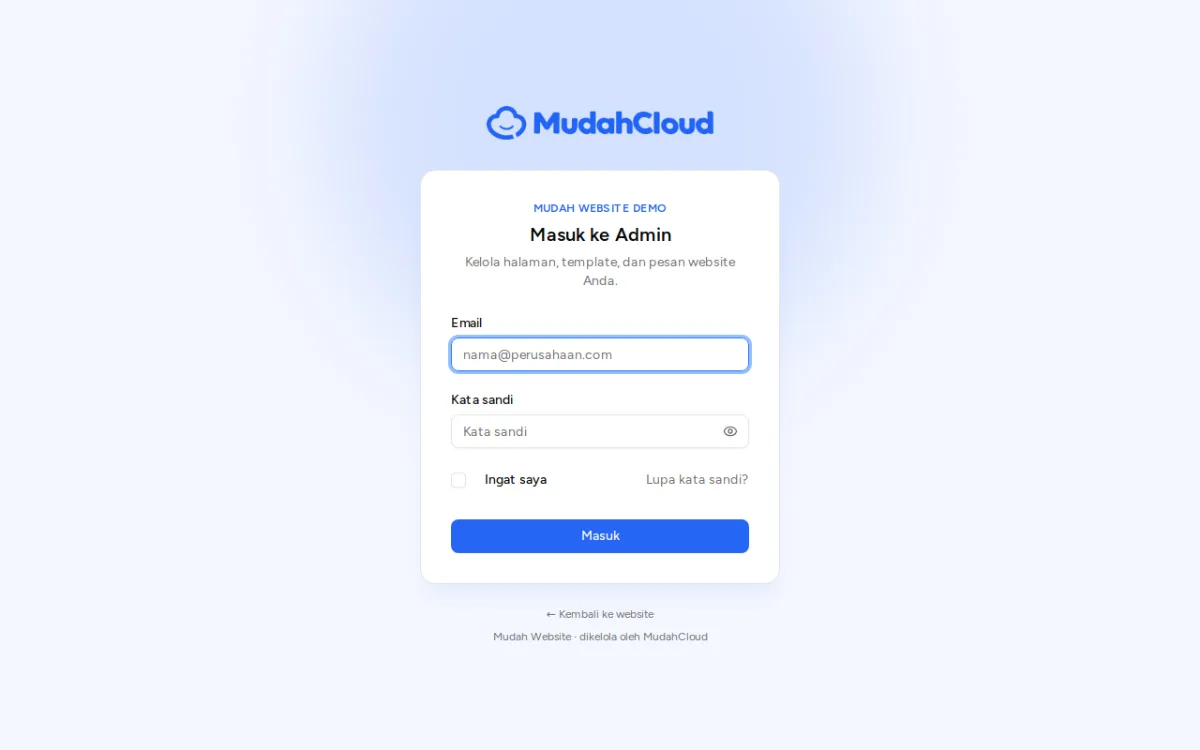
- Enter the admin email and click Kirim link reset (Send reset link).
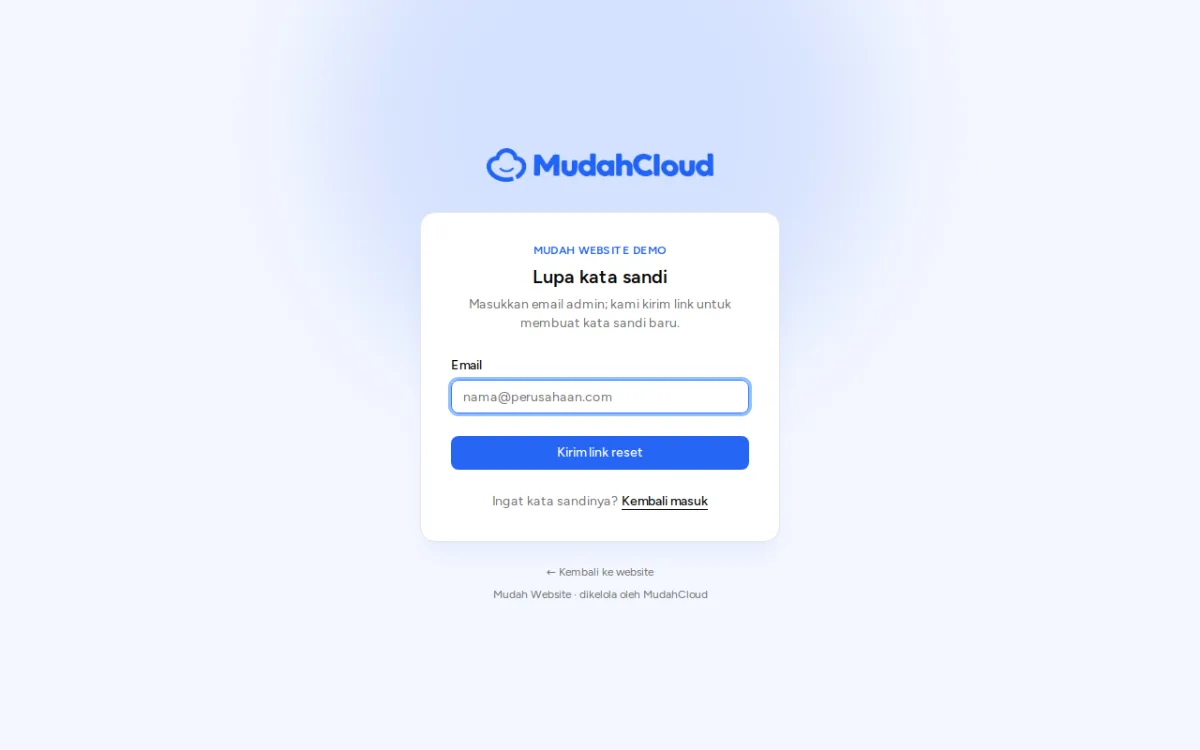
- Open the email from your website and click Buat kata sandi baru (Set a new password). The link works for 60 minutes.
- Enter the new password twice and click Simpan kata sandi (Save password). Sign in with it.
The admin email is usually your Mudah Cloud account's email; see the Access tab. No email? Check your spam folder, or use option 1 or 2.
Changing the password while signed in
In the admin panel, open Akun & Keamanan (Account & security) to change your password and turn on two-step sign-in.