





Mudah Website is a business website that goes online by itself once paid. You pick a template, then fill in and change everything yourself in its admin panel, without coding.
What you need
- A Mudah Cloud account. You can create one on the order page.
- Your business name.
- An idea of the template that fits. See every template and its live demo on the Mudah Website page.
Step 1: pick a template
- Open the Mudah Website page and scroll to Pick a template for your business.
- Click Demo to open the sample website live. In the demo window you can browse all its pages, switch to other templates and try the phone view.
- Click Use this template on the one you like. The order page opens with that template picked.
You can switch templates any time after the website is up, so there is no wrong choice.
Step 2: fill in the order page
- In Business name, enter the name your website shows, for example
Kopi Senja. You can change it later. - Check the Template. Click Change template to pick another.
- Choose the Billing period. The longer the term, the lower the monthly price. Six months or longer comes with a free domain for the first year.
- Click Continue, then choose the address:
- Free domain: an address under
mudah.cloud, for examplekopisenja.mudah.cloud. Type the name and click Check. - Register a paid domain: your own domain such as
.comor.my.id, registered with the website in one invoice. Extensions free with your term are marked Free.
- Free domain: an address under
- Click Continue, choose how to pay, accept the terms and go on to payment.
Step 3: pay the invoice
Pay the invoice with the method you chose. Once the payment is in, the website installs itself within a few minutes and we email the address and the admin sign-in to your account's email.
While it is being set up, the service under Services → Web Application shows Being set up, then Active.
Step 4: sign in to the admin panel
- Open Services → Web Application and click Manage on your website.
- On the Overview tab, click Manage website. The website's admin panel opens in a new tab and you are signed in, no password needed.
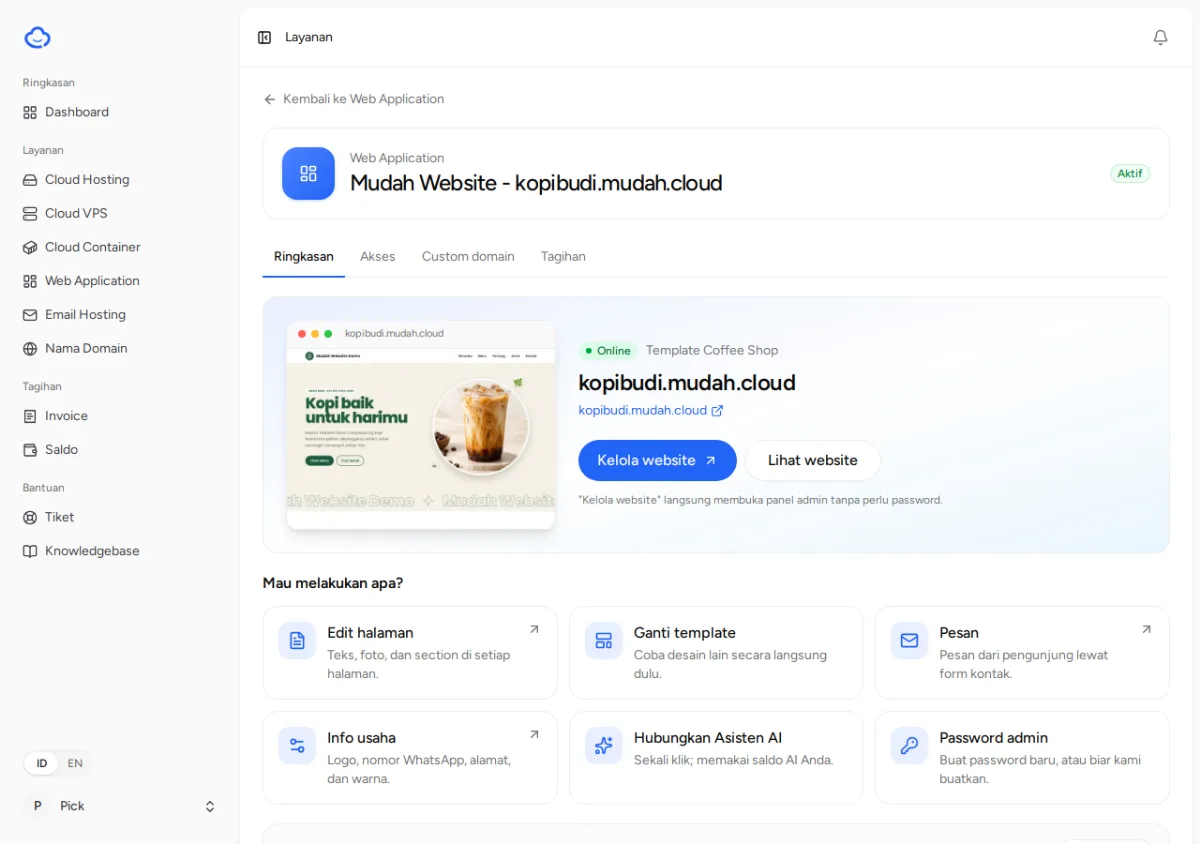
You can also open the admin panel at your-website-address/admin with the email and password from the Access tab.
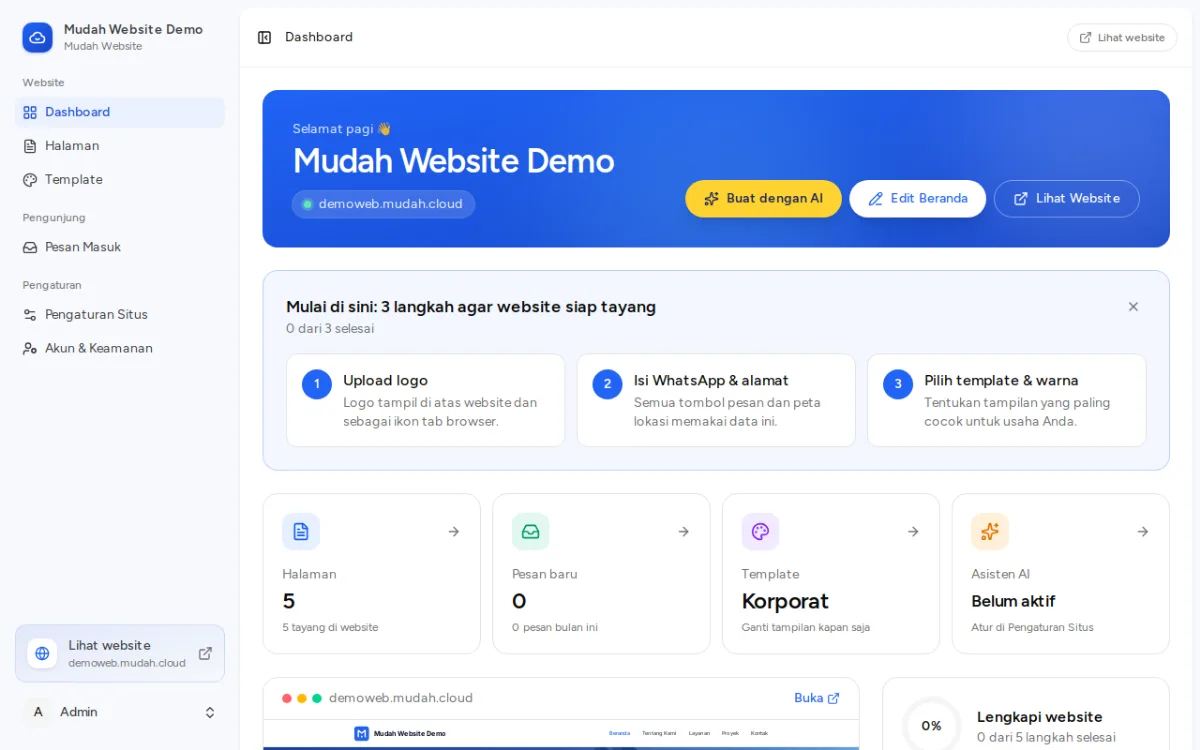
Next steps
The admin dashboard lists three first steps to get the website ready. Follow these guides in order:
- Change your logo, WhatsApp and business details
- Edit your website's pages
- Switch your website's template
Want the content written for you? Read Use the AI assistant on Mudah Website.